¶ Home
-
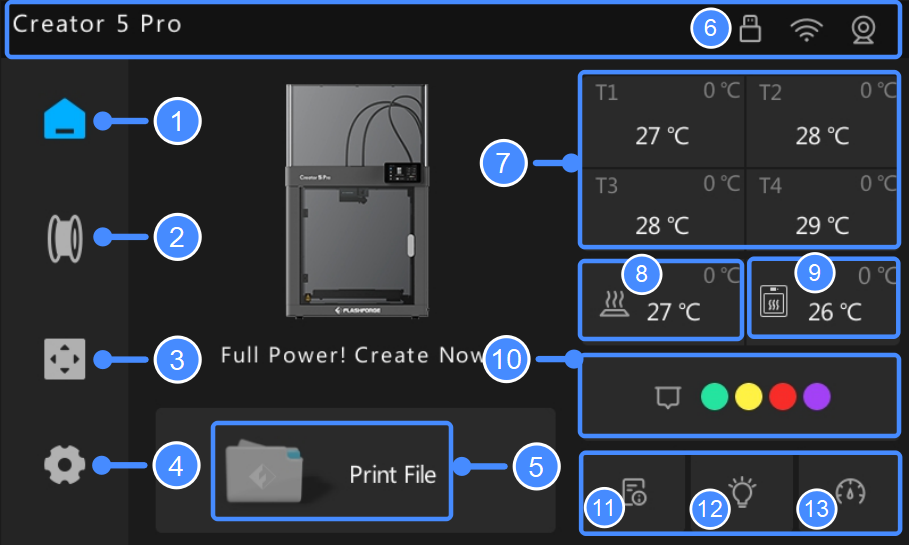
Home
Displays the current operating status. -
Filament Settings
Opens the Filament Settings screen, where you can configure the filament type and color for each spool. -
Move & Calibrate
Opens the Move & Calibrate screen. The Move screen allows for manual control of the motion system, while the Calibrate screen lets you select and run specific calibration tasks. -
Settings
Opens the Settings menu to configure various printer parameters. -
Print File
Displays print files stored in internal storage or a connected USB drive. Select a file to start printing. -
Status Bar
Displays the printer name and the following hardware status indicators: USB Drive
Indicates a USB drive is inserted into the USB port. Wi-Fi
Wi-Fi
Indicates the printer is connected to a Wi-Fi network. Camera
Indicates the camera is installed and functioning. VDS
VDS
Appears when VDS (Ventilated Drying System) is connected.
-
Nozzle Temperature Status
Displays the target and current nozzle temperatures for each extruder. Tap at any time to adjust temperature settings. -
Bed Temperature Status
Displays the target and current bed temperatures. Tap at any time to adjust temperature settings. -
Chamber Temperature Status
Displays the target and current chamber temperatures. Tap at any time to adjust temperature settings.
Only applicable to Creator 5 Pro.
-
Filament Color
Displays the configured filament colors. When the printer is idle, tap for details. -
Device Information
Tap when idle to view device details; tap during printing to view print details. -
Chamber Light
Toggles the chamber light on or off. The icon is highlighted when the light is on. -
Print Mode
Tap to choose from three modes: Silent, Standard, and Motion. The icon updates to reflect the selected mode.
For more details, see Change Print Mode.
¶ Filament Settings
-
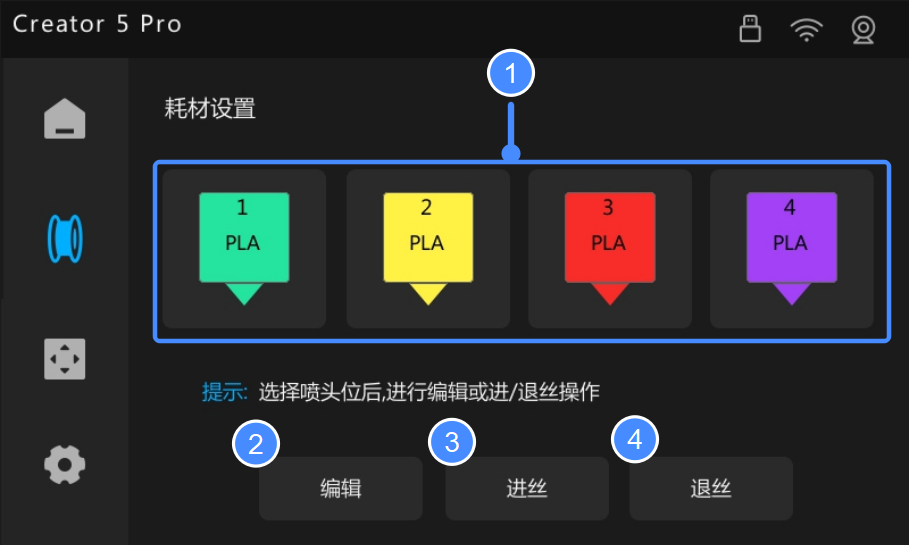
Extruder Selection
Tap to select an extruder. -
Edit
Configure the filament type and color for the selected extruder. -
Load
Load filament into the selected extruder. -
Unload
Displays instructions for manual filament unloading.
¶ Move & Calibrate
¶ Move
-
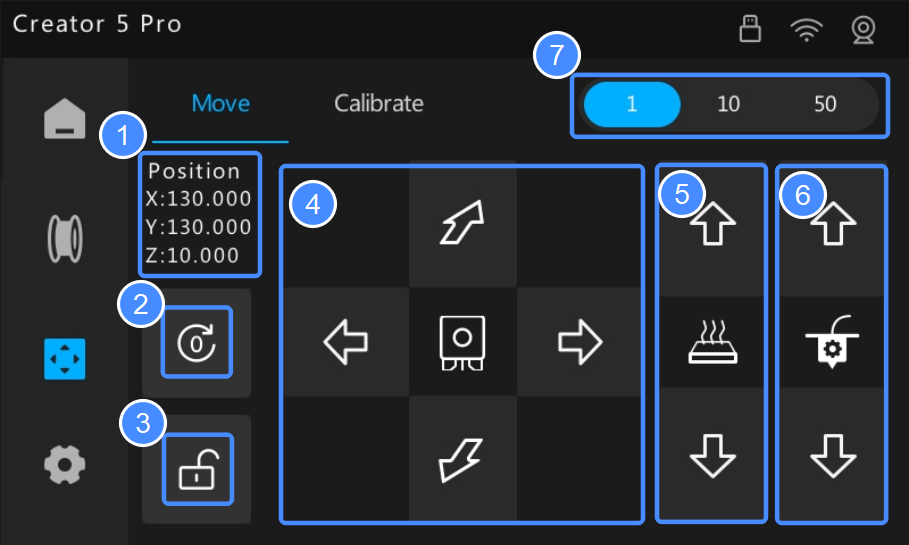
Position
Displays the current coordinates of the X, Y, and Z axes. -
Home
Returns all motion components to their mechanical home positions. -
Unlock
Releases the motor locks, allowing you to manually move the extruder mount or the bed. -
Horizontal Movement
Moves the extruder along the X and Y axes via the arrow buttons. Tap the center icon to select and load an extruder. -
Vertical Movement
Moves the bed along the Z-axis. -
Extrusion Control
Extrudes or retracts filament. Ensure the extruder is loaded and the nozzle is heated to the target temperature before use. -
Increment
Sets the distance the X, Y, and Z axes move with each tap of an arrow button.
For more details, see Motion Control.
¶ Calibrate
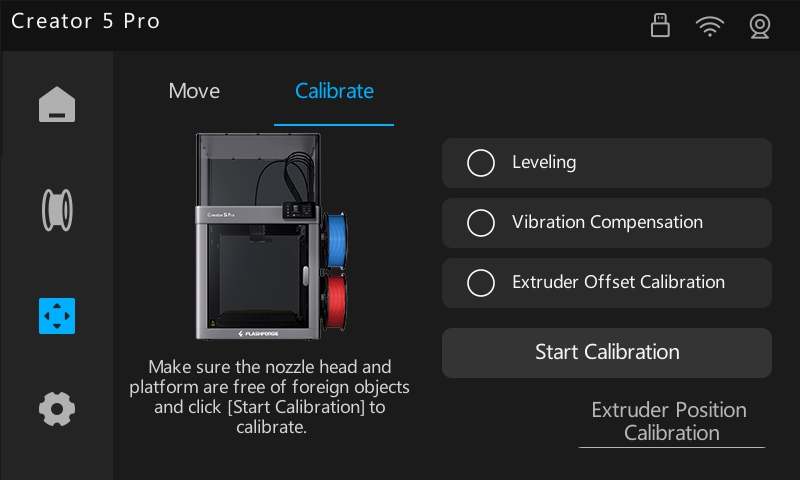
Manually perform Extruder Offset calibration, or run automatic calibrations such as bed leveling and vibration compensation.
¶ Settings
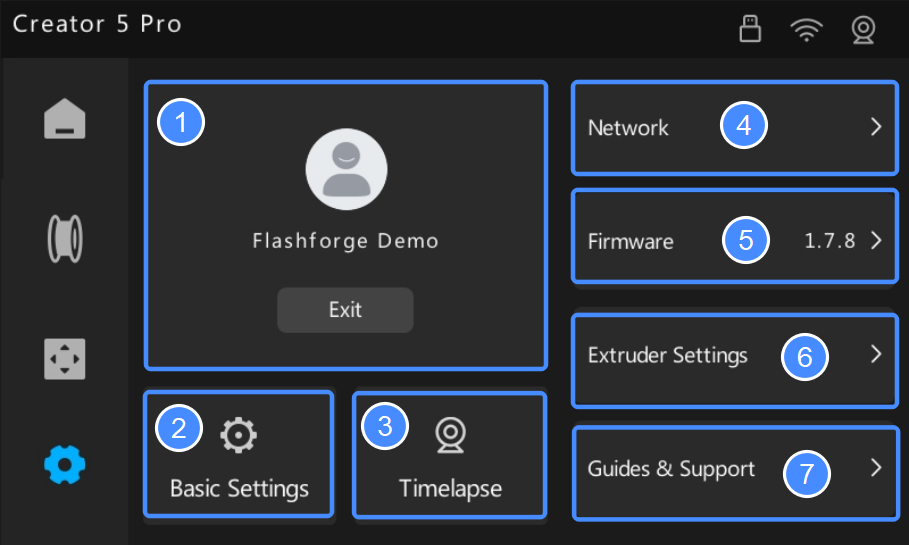
-
Account
Displays the account bound to the printer. Tap Exit to unbind. If unbound, scan the displayed QR code with Flash Studio Mobile to link the device. -
Basic Settings
Contains submenus for printer settings and controls. -
Timelapse
Allows you to view timelapse videos stored in the internal storage. It supports single or bulk file deletion, as well as exporting video files to a USB drive.
For more details, see Monitoring & Timelapse. -
Network
Displays the connected Wi-Fi network. Tap to configure network settings.
For more details, see Network Setup. -
Firmware
Displays the current firmware version. Tap to check for updates.
For more details, see Firmware Update. -
Extruder Settings
Sets the nozzle diameter for each extruder. Update this setting whenever you change the nozzle size to ensure print accuracy. -
Guides & Support
Displays a QR code for the complete User Guide, customer support contact info, and the docking status of each extruder.
¶ Basic Settings
Tap the up/down arrows on the right side to view more options.
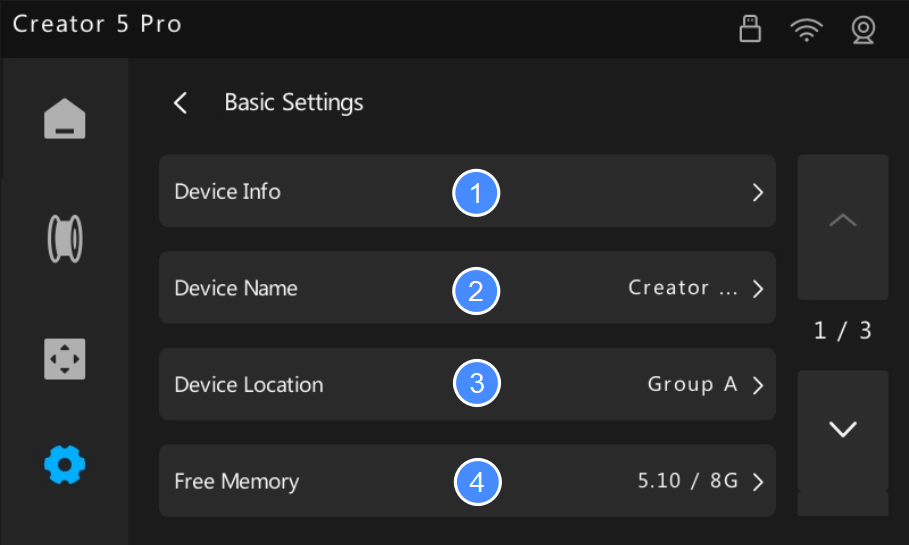
-
Device Info
Displays basic device information, including the device model, total print time, total filament usage, IP address, MAC address, and serial number. -
Device Name
Changes the printer display name, which appears in the status bar for quick identification. -
Device Location
Changes the printer's location description. This information syncs with the Flash Studio device list for quick identification across different workspaces. -
Free Memory
Displays the current available capacity and the total storage capacity of the printer's internal storage.
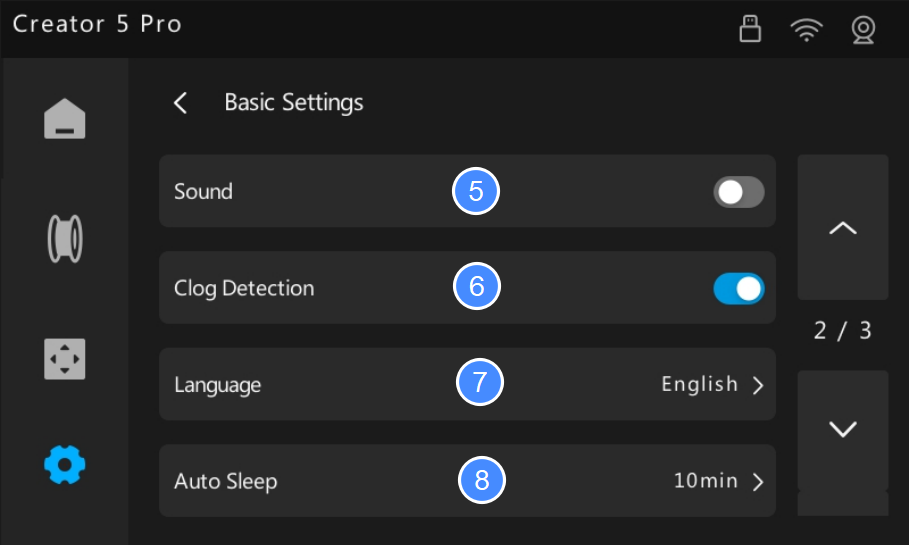
-
Sound
When enabled, the printer chimes at startup and print completion. -
Clog Detection
Enables nozzle clog detection. The printer will pause printing and send an alert if a clog occurs. -
Language
Changes the default display language of the user interface. -
Auto Sleep
Sets the idle time before the printer automatically enters sleep mode.
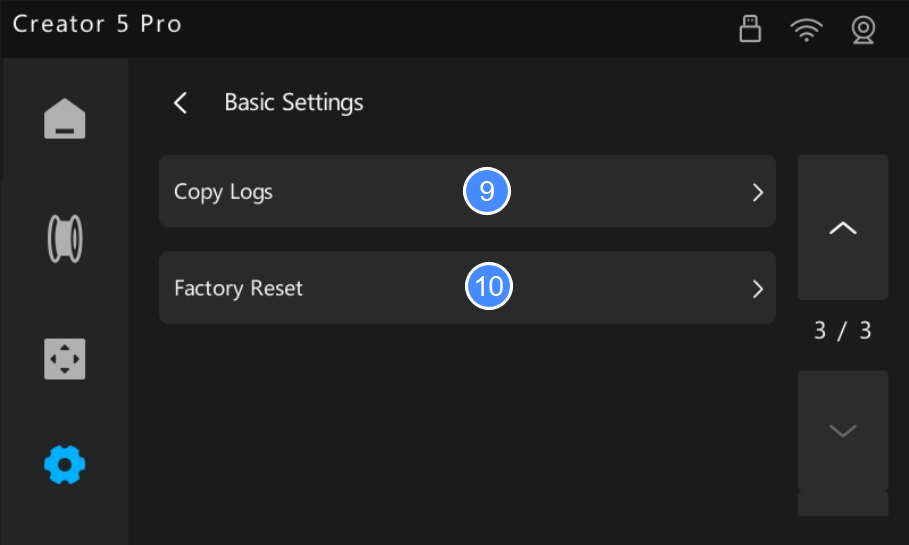
-
Copy Logs
Exports device logs to a USB flash drive. -
Factory Reset
Restores the printer to its factory default settings. -
Upload Logs to Server
Uploads device logs to the Flashforge server to assist technical support with troubleshooting and issue diagnosis.