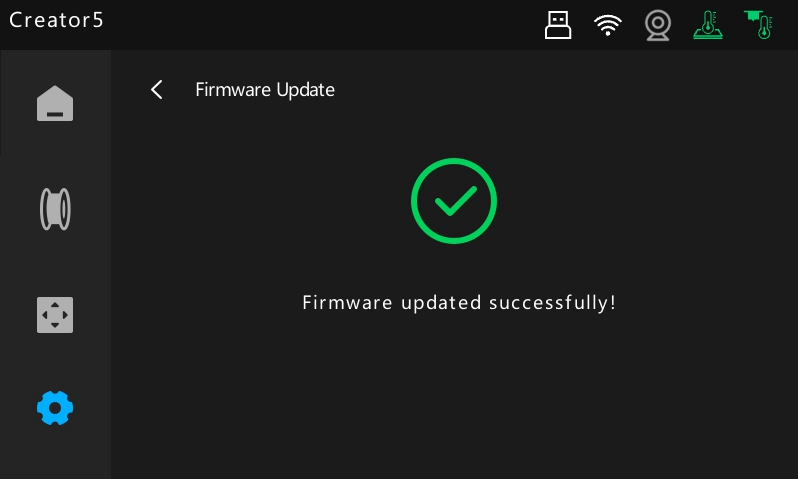
¶ Firmware Update
For Creator 5, there will be ongoing firmware updates released from time to time. To update the firmware, simply connect the printer to Wi-Fi or Ethernet. For details, please refer to the following instructions:
¶ Firmware Update via OTA
1. When the printer is first connected to Wi-Fi or Ethernet, it will check the server for new firmware and prompt updates through OTA.
2.When an update is available, an on-screen prompt will appear. Review the changelog and select whether to install the new version.
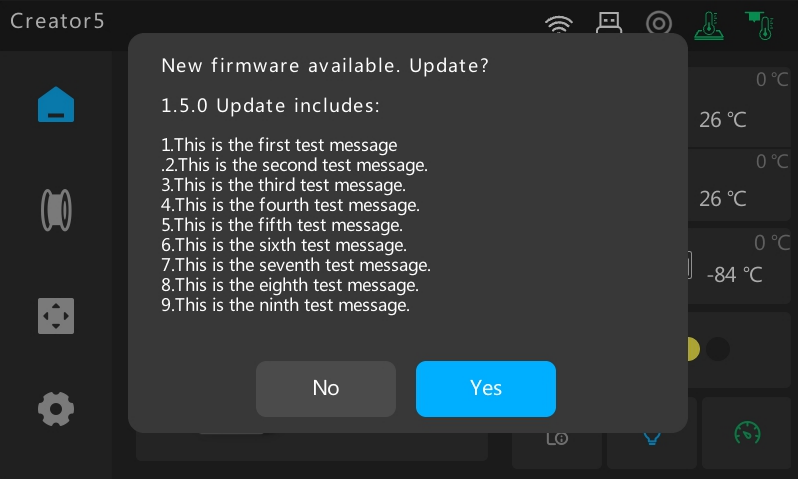
3.Click Yes to install the new version.
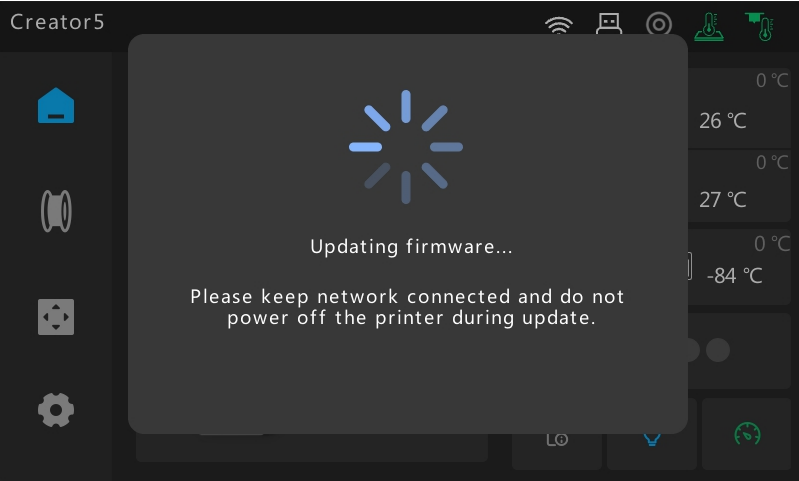
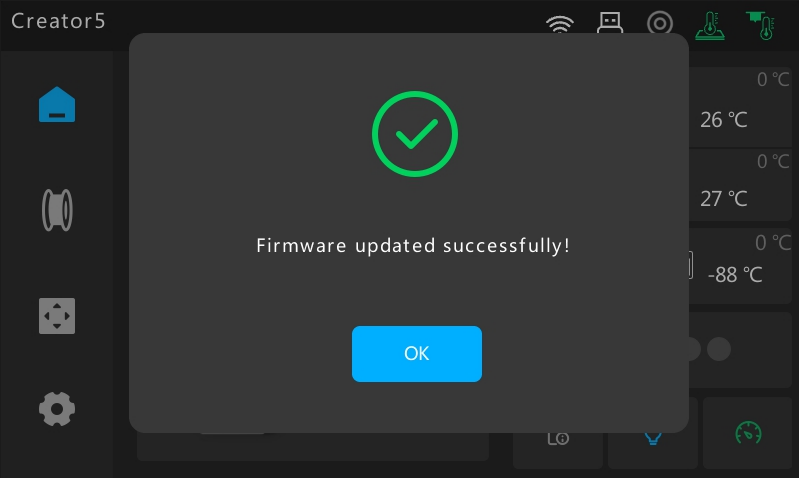
4. A manual restart is required to finalize the installation and apply the new firmware.
¶ Manual Update Check
1. You can also manually check for the latest firmware by navigating to the Tools menu, and tap Firmware.
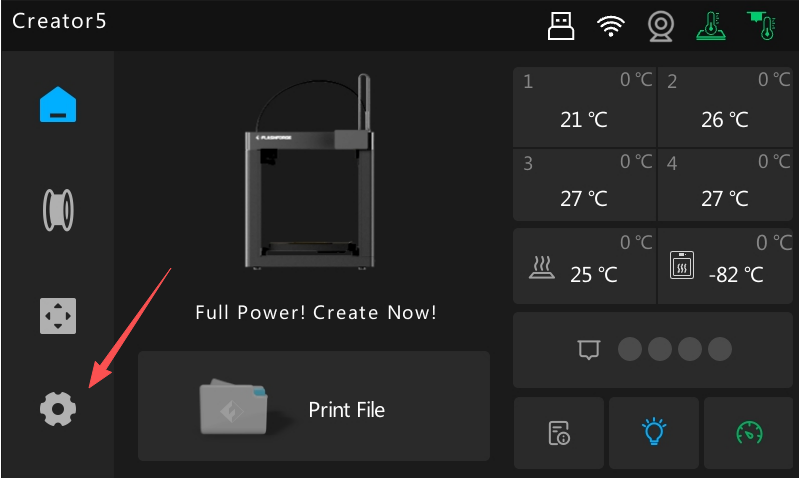
2.The system checks for new firmware versions in the background automatically.
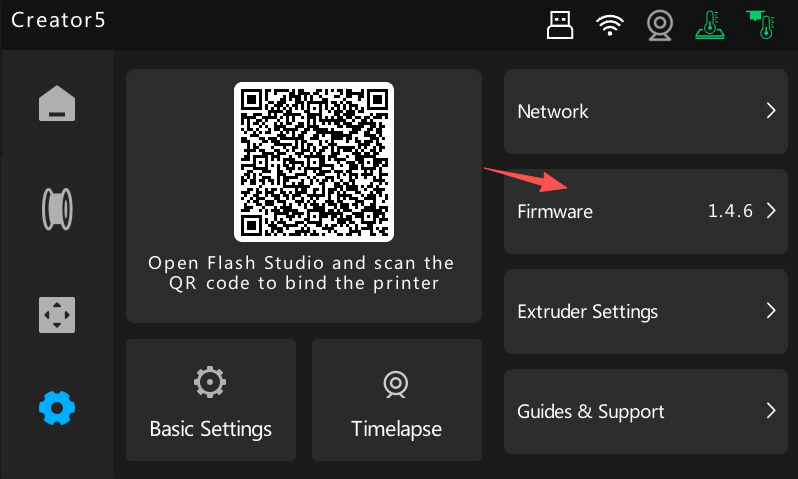
3.When a new update is available, changelog will be displayed.
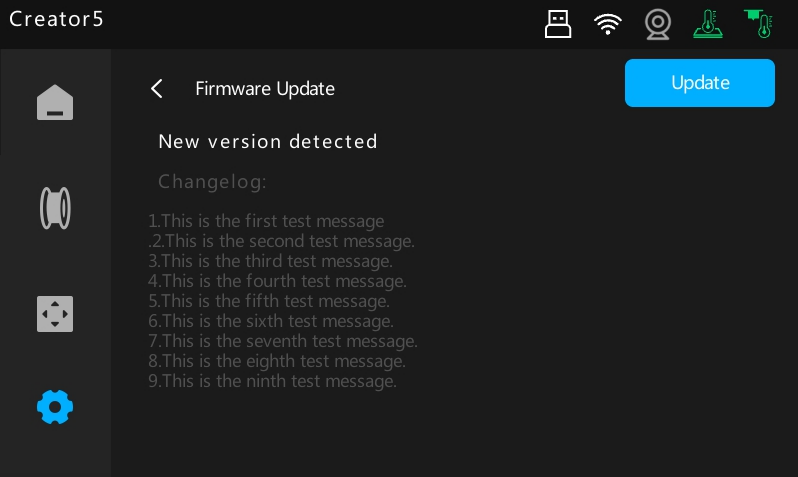
4.Tap Update to initiate the firmware upgrade.
To ensure a successful installation, maintain a stable network connection and do not power off or restart the printer during the process. To skip the update and keep your current version, tap the < icon in the top-left corner.
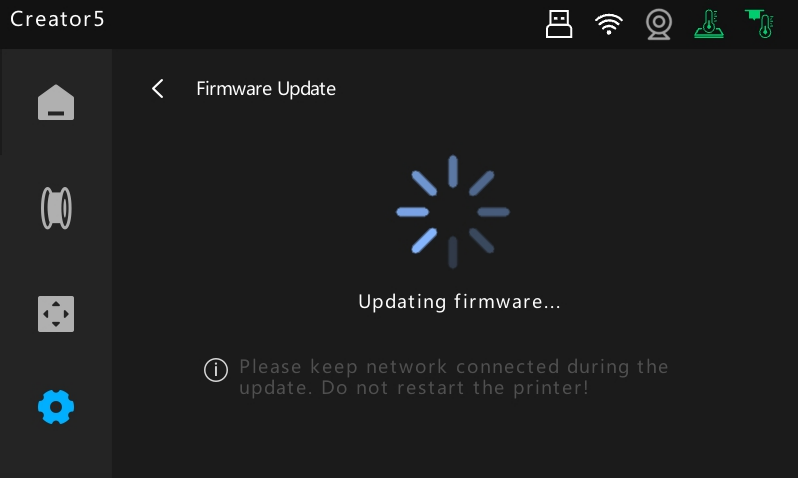
5. Once the update is complete, manually restart the printer to apply the new firmware.