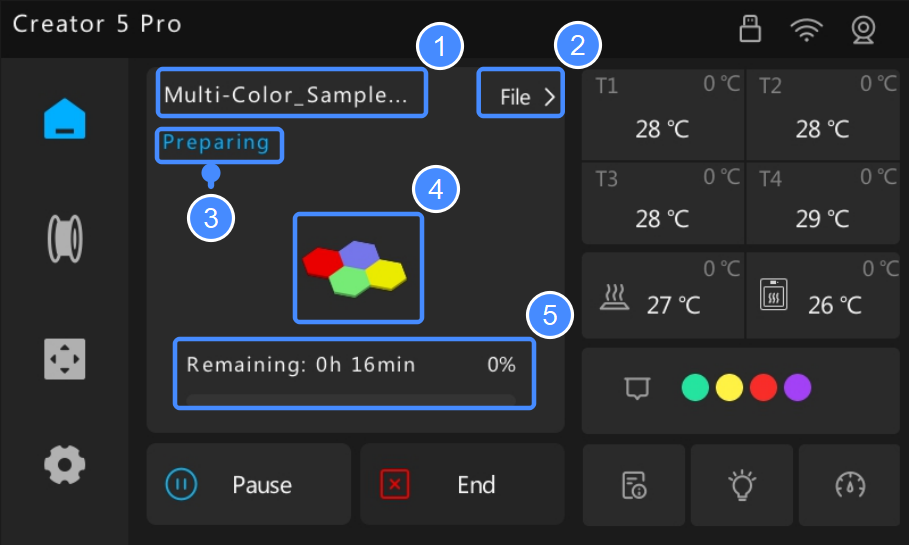
Once a print task starts, the printer enters active mode, and the Home screen displays print status and progress.
-
Print File
Display the current print file name. -
Browse Files
Browse print files in internal storage. Editing is unavailable while printing. -
Print Status
Displays the current print status:- Preparing: The printer is performing pre-print routines, such as homing, auto-leveling, and heating.
- Printing: The print task is in progress.
- Paused:The print task is paused. You can resume or cancel the print at any time.
- Print Complete: The print task is complete.
-
Model Preview
Displays an image of the print model. -
Time Remaining & Progress
Displays the remaining time and progress as a percentage.
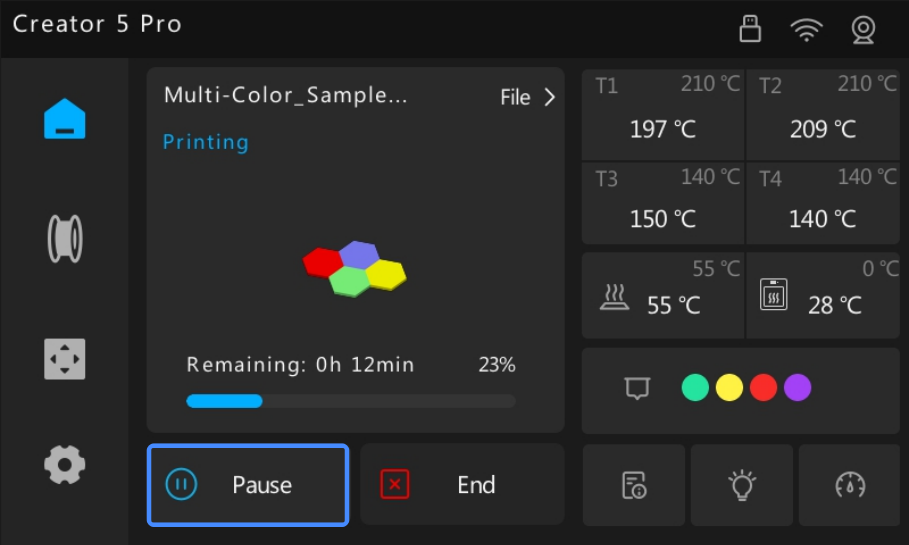
¶ Pause Print
Tap Pause to pause the print, and Continue to resume printing.
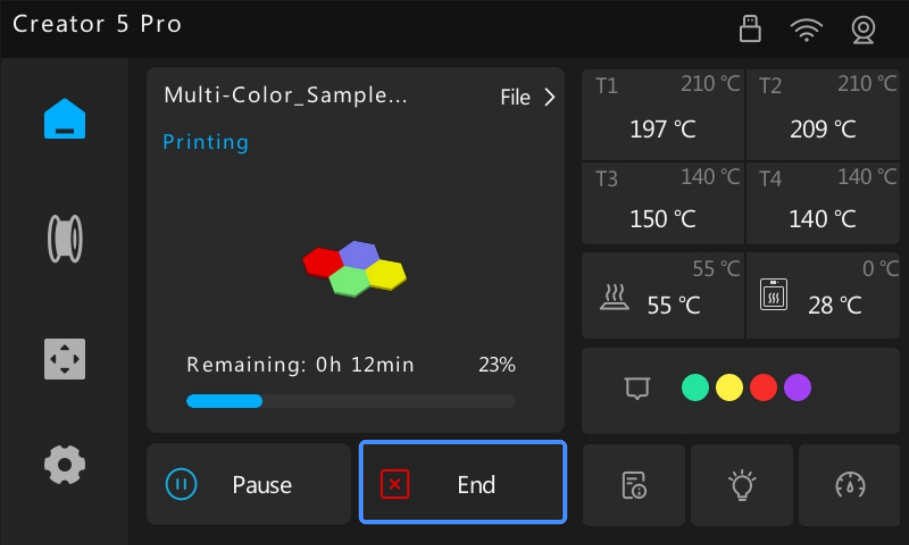
¶ End Print
Tap End to cancel the print.
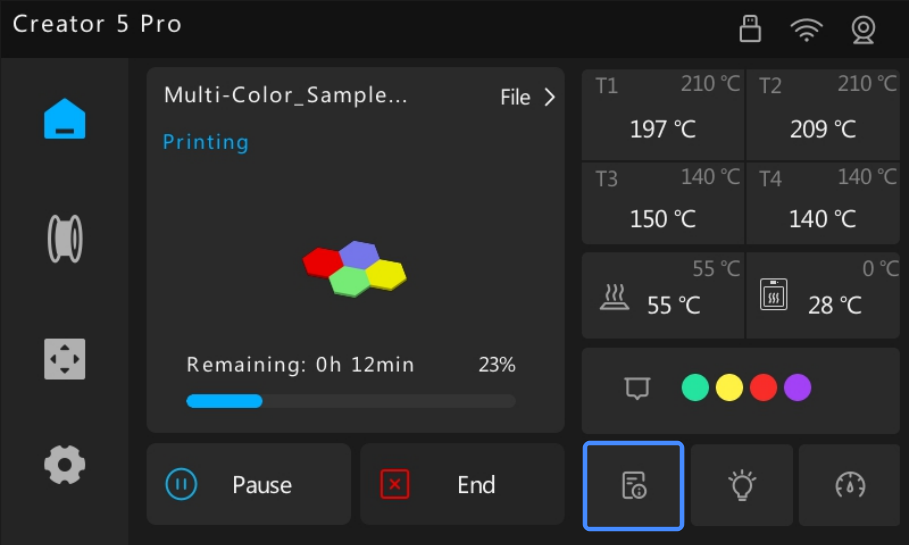
¶ View Print Details
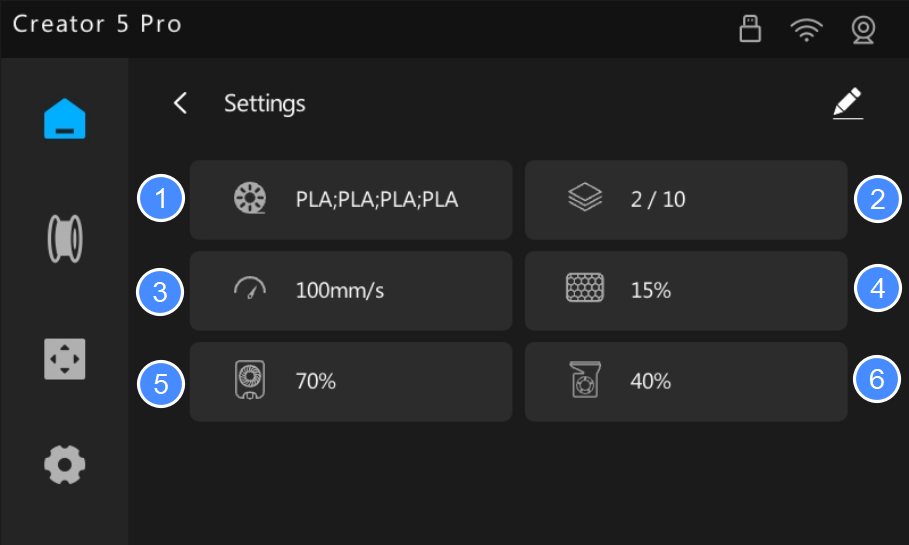
While a print task is running, tap the View Info icon to see details of the current print.
-
Filament Type
Displays all filament types used in the current print task. -
Layer Information
Displays the current printed layer and the total number of sliced layers. -
Print Speed
Displays the current print speed. -
Infill Density
Displays the model's infill density. This value is preset in the slicing software and cannot be modified during printing. -
Model Cooling Fan Speed
Displays the current speed of the Model Cooling Fan as a percentage of its maximum speed. -
Auxiliary Cooling Fan Speed
Displays the current speed of the Auxiliary Cooling Fan as a percentage of its maximum speed.
¶ Adjust Fan Speed
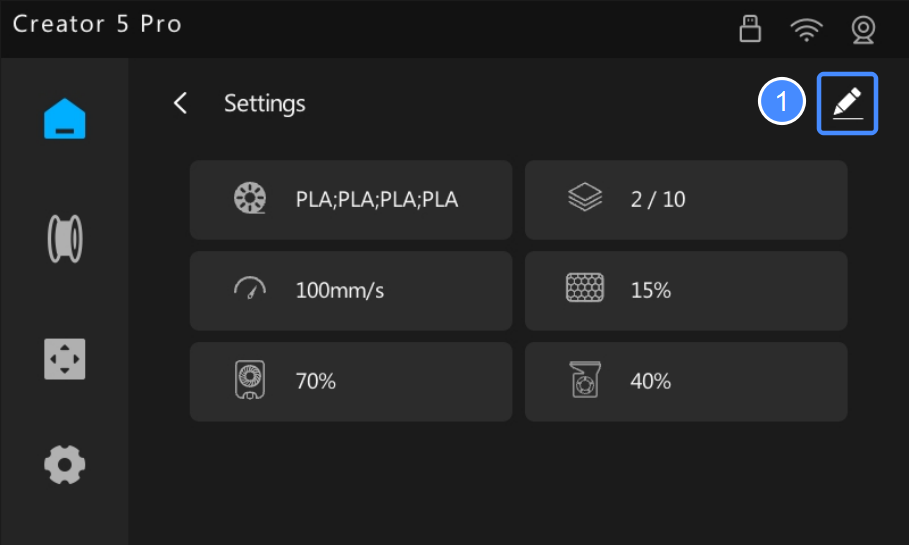
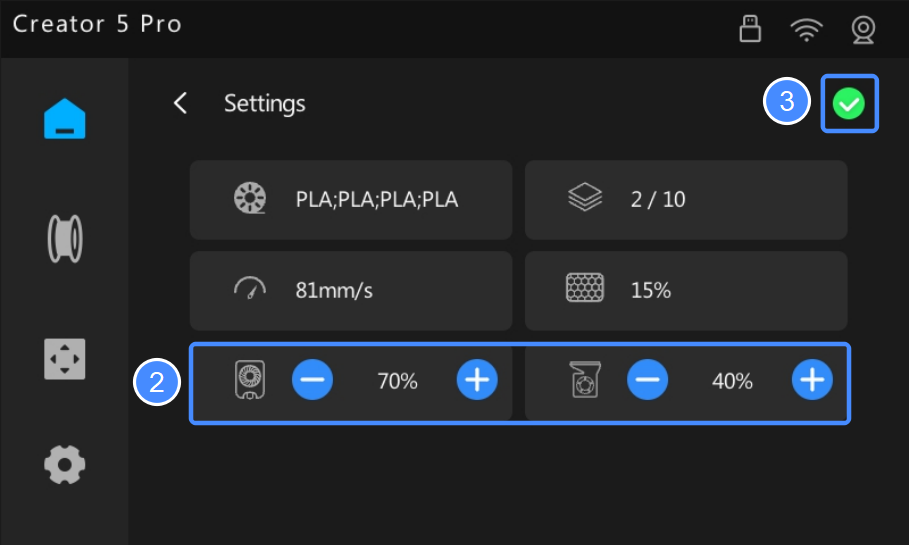
Model Cooling Fan and Auxiliary Cooling Fan speeds can be adjusted during printing.
Tap the Edit icon, use + and - to adjust the speed, then tap ✔️ to apply.
¶ Change Print Mode
Print mode adjusts the overall movement speed of the extruder without changing the original slicing settings.
The printer provides three speed modes: Silent, Standard, and Motion.
Switching modes proportionally adjusts the actual extrusion flow rate of the hot end, which may affect surface quality in some cases.
You can switch print modes as needed during printing. Select a mode to highlight it, then tap the Back icon to apply the change.
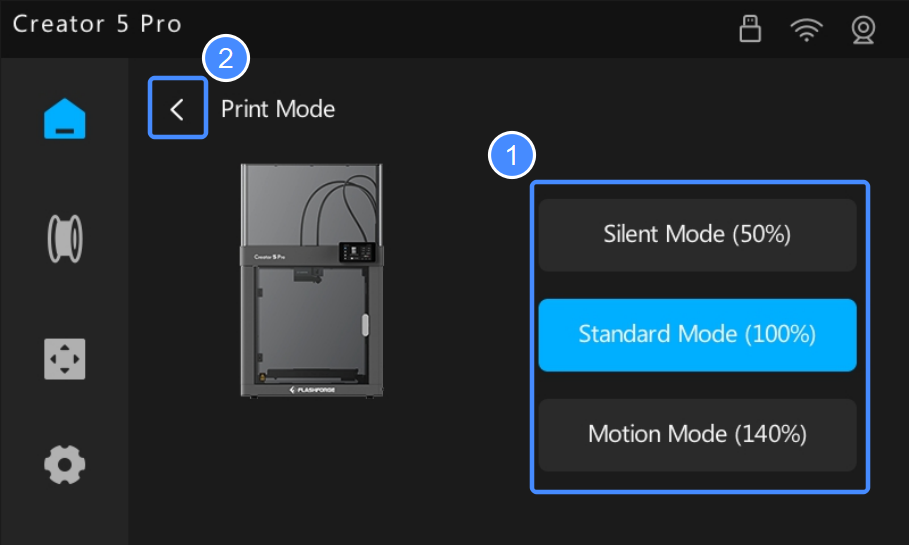
- Silent Mode (50%):Runs at 50% of the default speed to minimize noise. Ideal for small models, intricate details, or noise-sensitive environments. Slower printing allows filament to cool and solidify more effectively, helping reduce ringing/ghosting caused by machine inertia and significantly improving surface finish, though print times will increase.
- Standard Mode (100%):The default mode. It delivers the optimal balance between print quality, efficiency, and stability, making it suitable for most everyday printing scenarios.
- Motion Mode (140%):Runs at 140% of the default speed to prioritize faster printing. However, high-speed extrusion demands high melting performance of the hot end. If the filament's maximum speed limit is exceeded, issues such as under-extrusion, surface defects, or poor layer adhesion may occur. Best suited for prototype parts where speed matters more than appearance.
If you are unsure which mode to use, it is recommended to use the default Standard Mode.
Different filaments respond differently to speed changes. For instance, filaments like PLA and ABS maintain stable flow after melting and generally handle speed variations well. Conversely, flexible filaments like TPU are more prone to feeding issues or inconsistent extrusion when print speed changes abruptly due to their softness and high melt viscosity, which can lead to filament breakage or nozzle clogs. For these filaments, Motion Mode is not recommended.