¶ Multi-Color Printing
This page introduces the professional and feature-rich multi-color printing capabilities of Flash Studio Desktop.
 |
 |
¶ Managing Filaments in Projects
Complete filament management in the filament list on the left side.
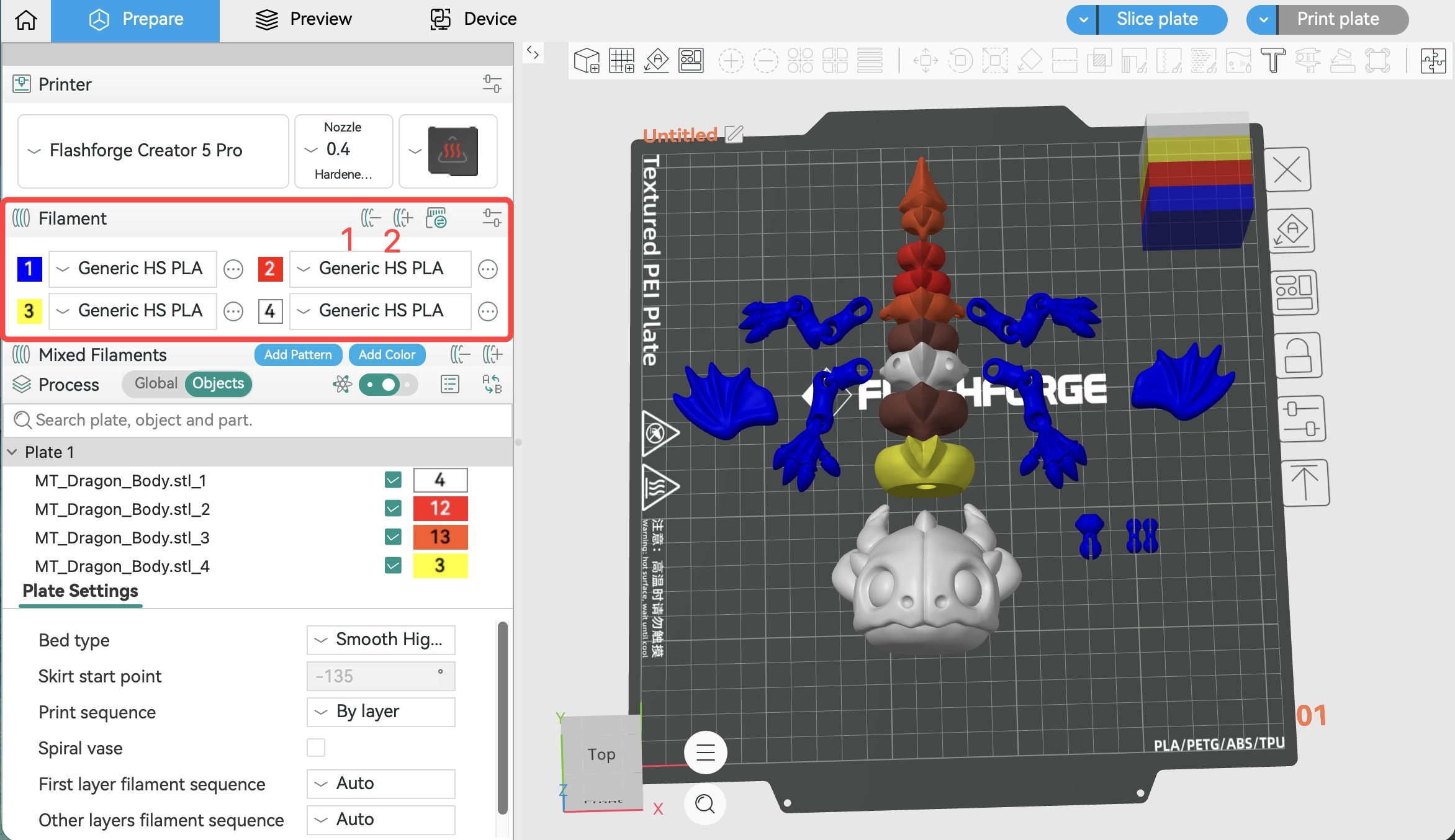
- 1. Add/Remove Filament
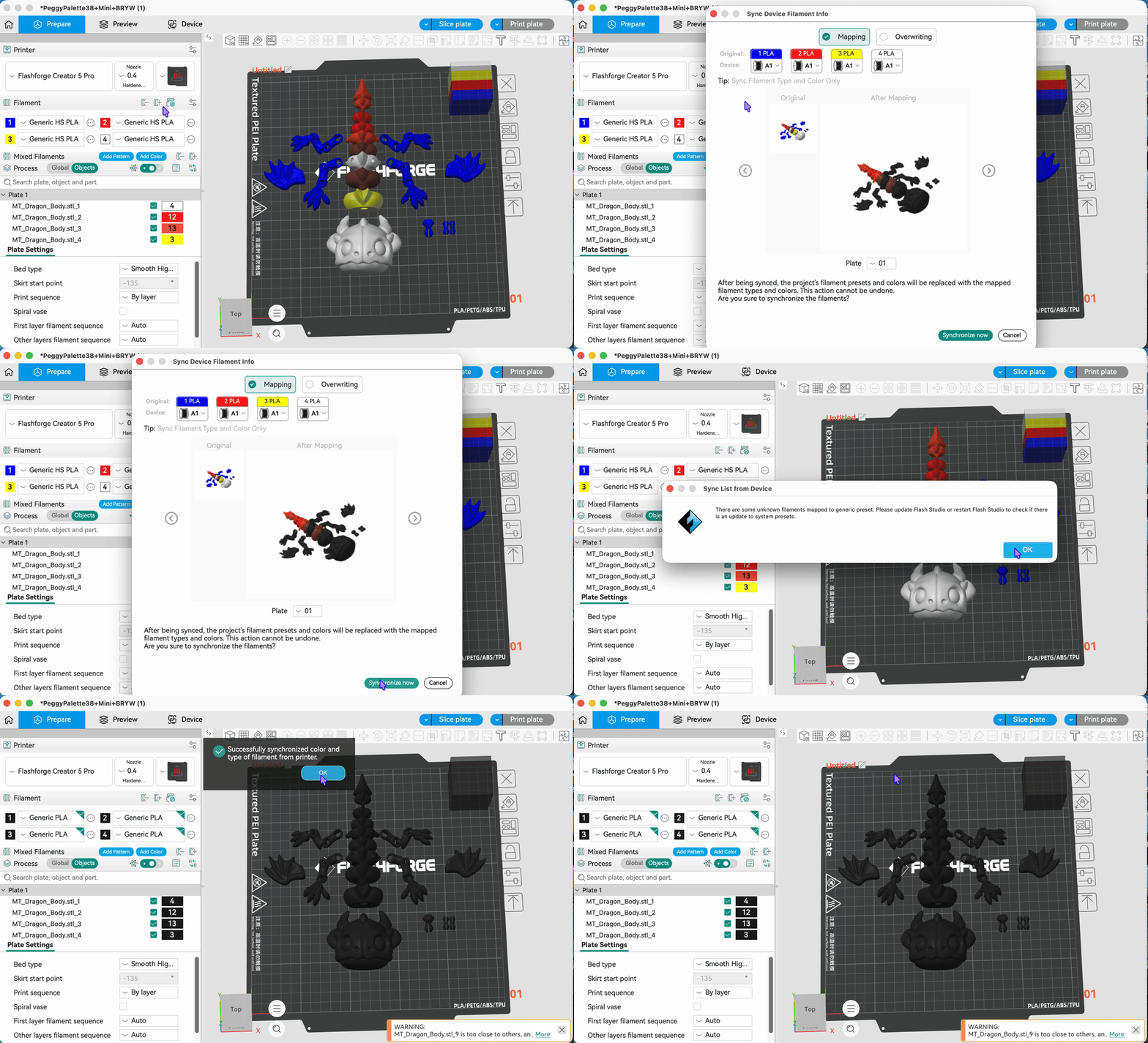
- 2. Sync List from Device
If you have edited your filament type/color/name on the device, clicking "Sync List from Device" will synchronize your device settings without needing to repeat the operation in the slicing software.
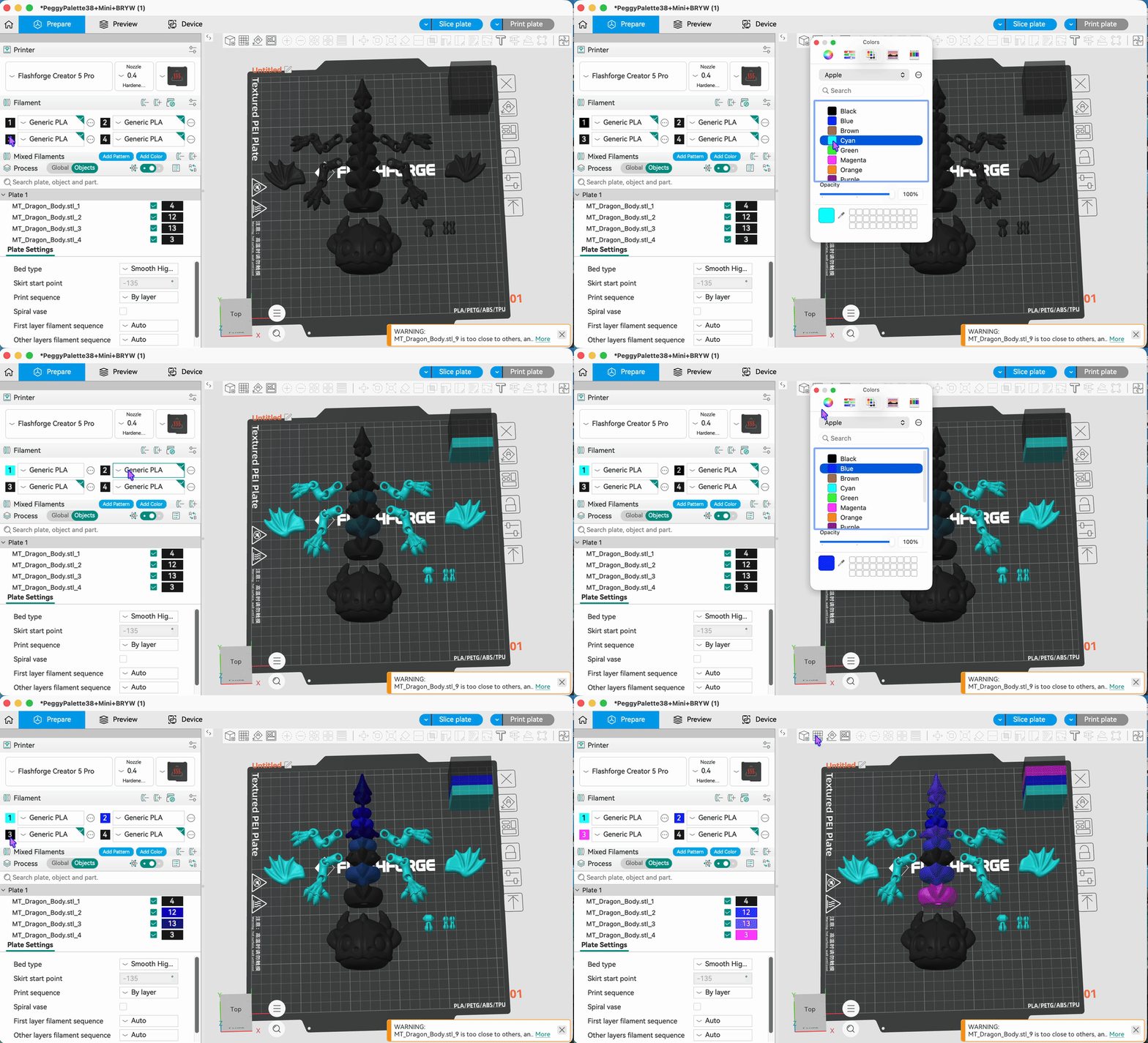
- Set Filament Color/Type
Set the type and color for each filament.
¶ Coloring Multi-Color Models
Flash Studio Desktop provides versatile coloring tools for various types of models.
¶ Coloring Objects/Parts
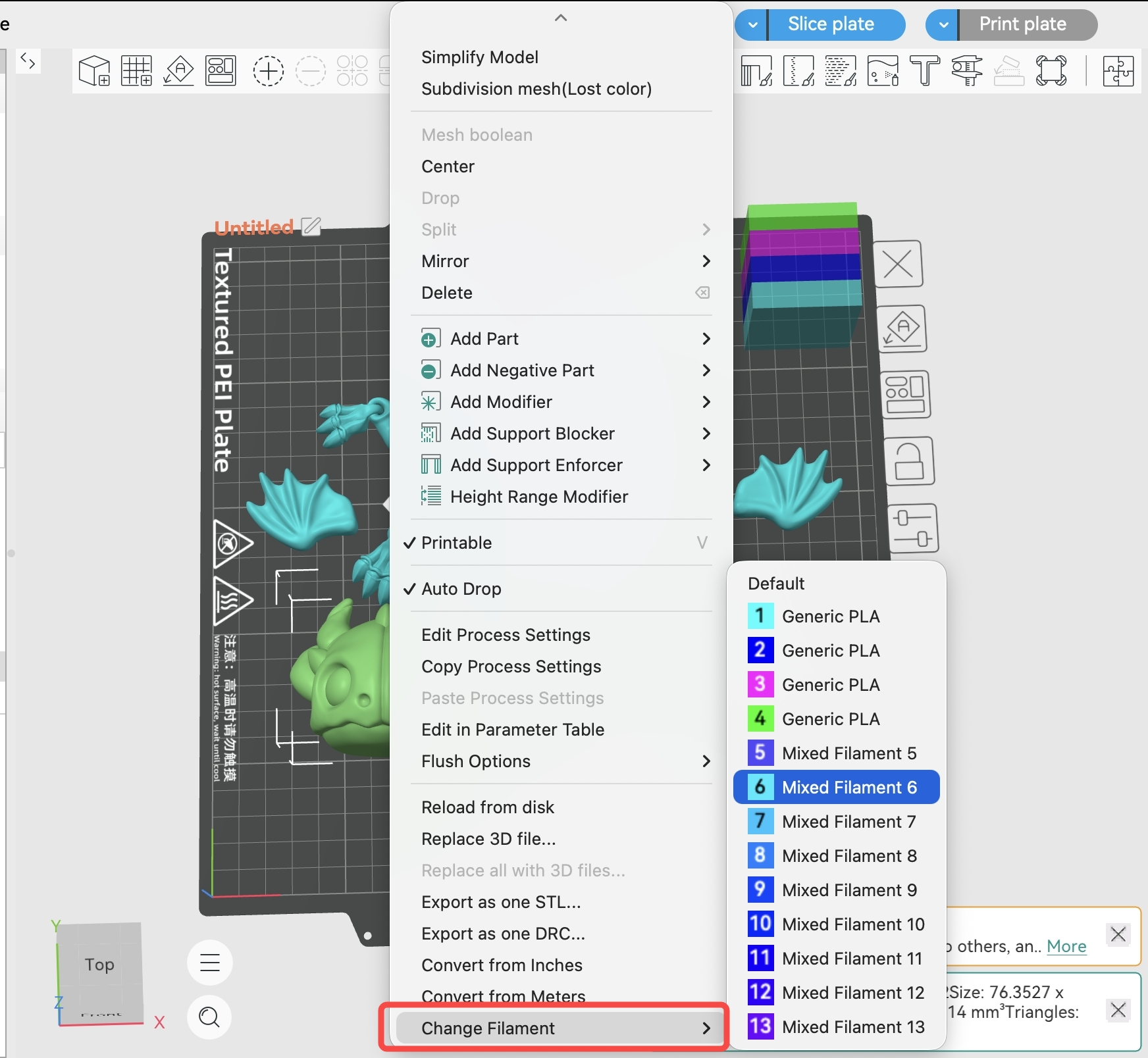
- Select filament for objects/parts in the Process list in the left sidebar:
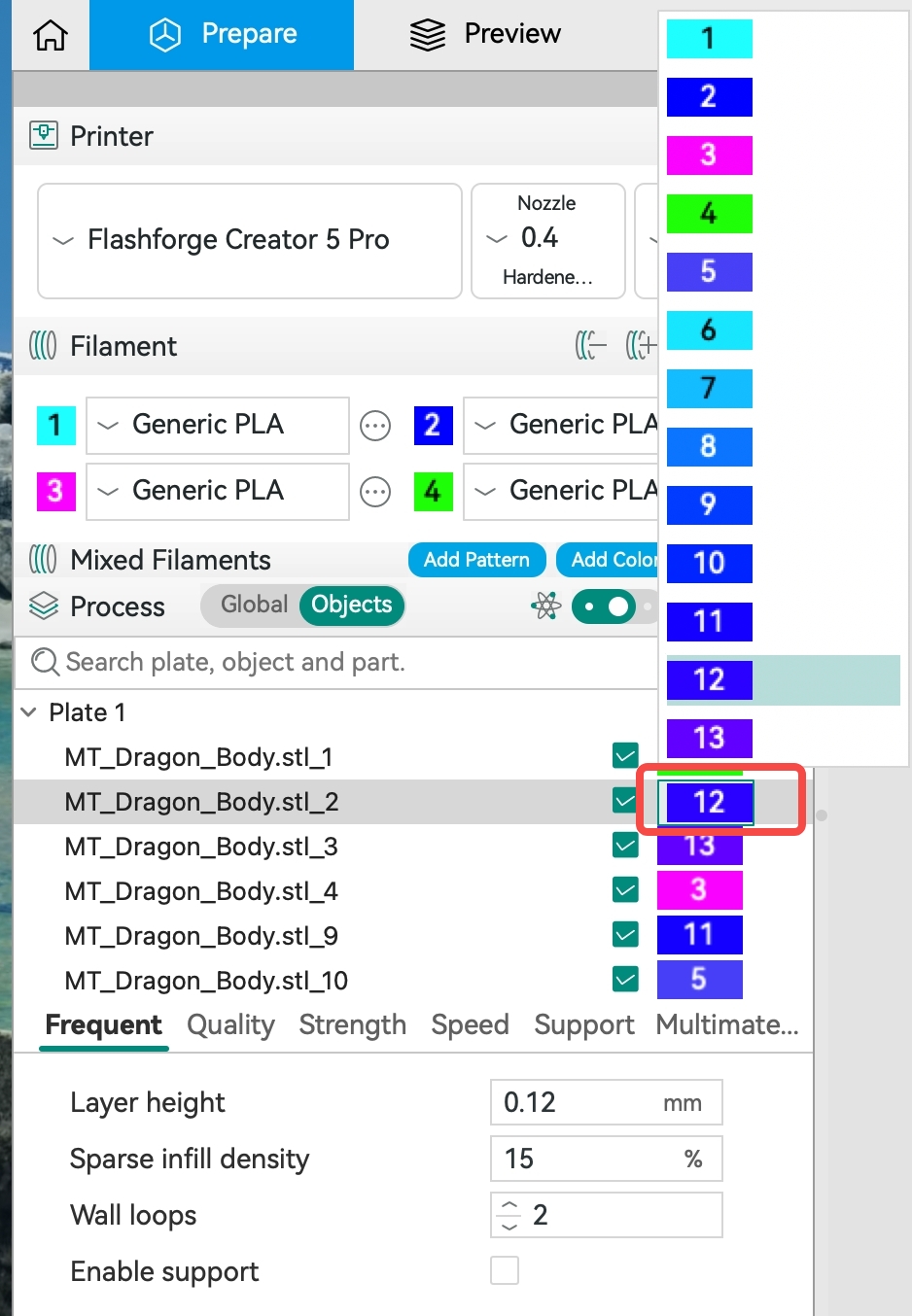
After splitting into objects, select the target color in the object list
- Right-click the target object/part and select filament from the right-click menu.
¶ Splitting Model into Parts/Objects for Coloring
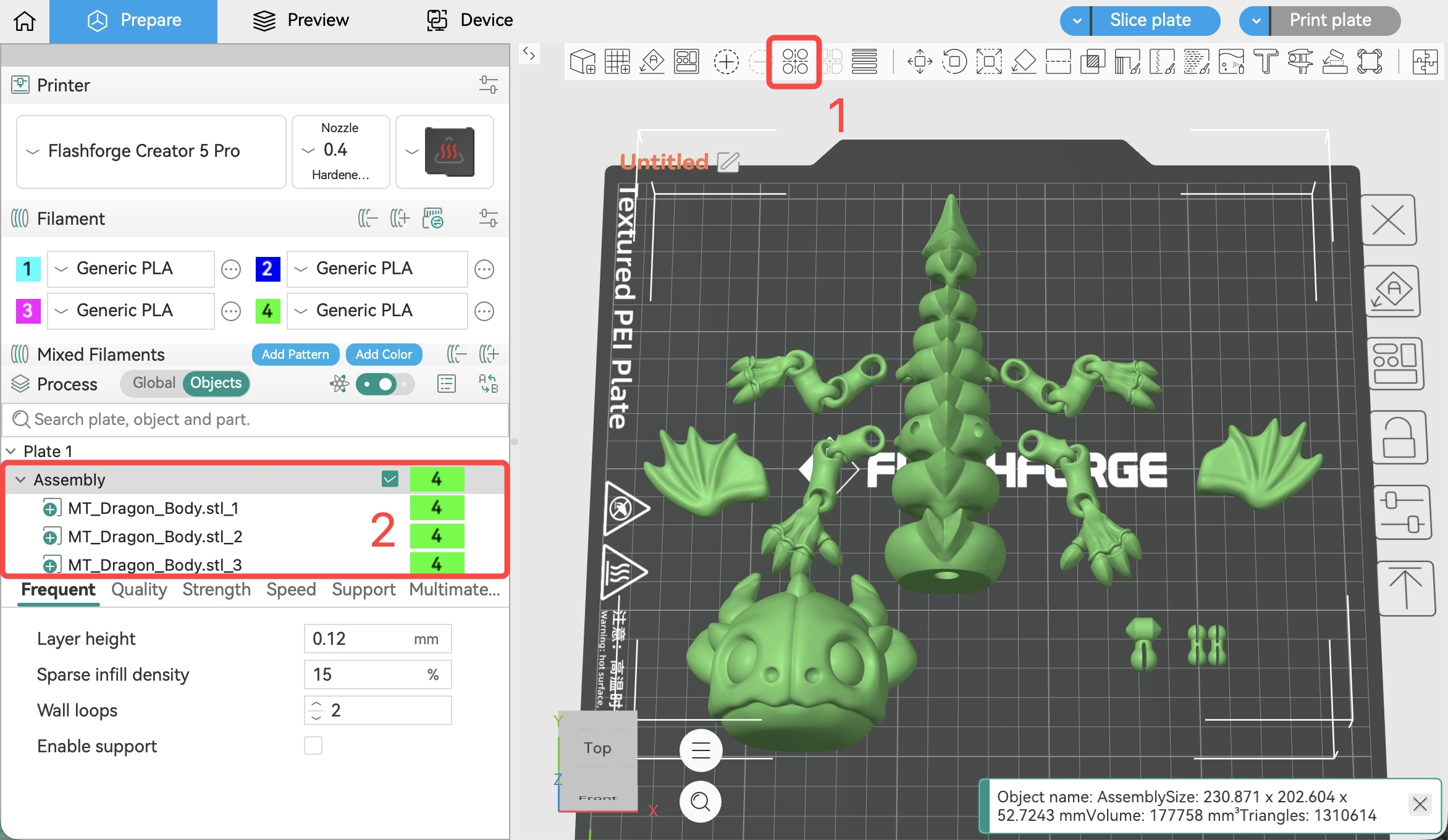
If you imported a single-object model, you can try splitting the model into parts/objects and then color different parts/objects separately.
After splitting into parts, all parts can still be moved or colored as a whole; after splitting into objects, each object can only be moved or colored individually.
-
- Click this button to split the model into parts; 2. After splitting, they become multiple objects that can be colored individually.
-
- View all split parts in the menu;
-
- Color individually;
¶ Painting on Models
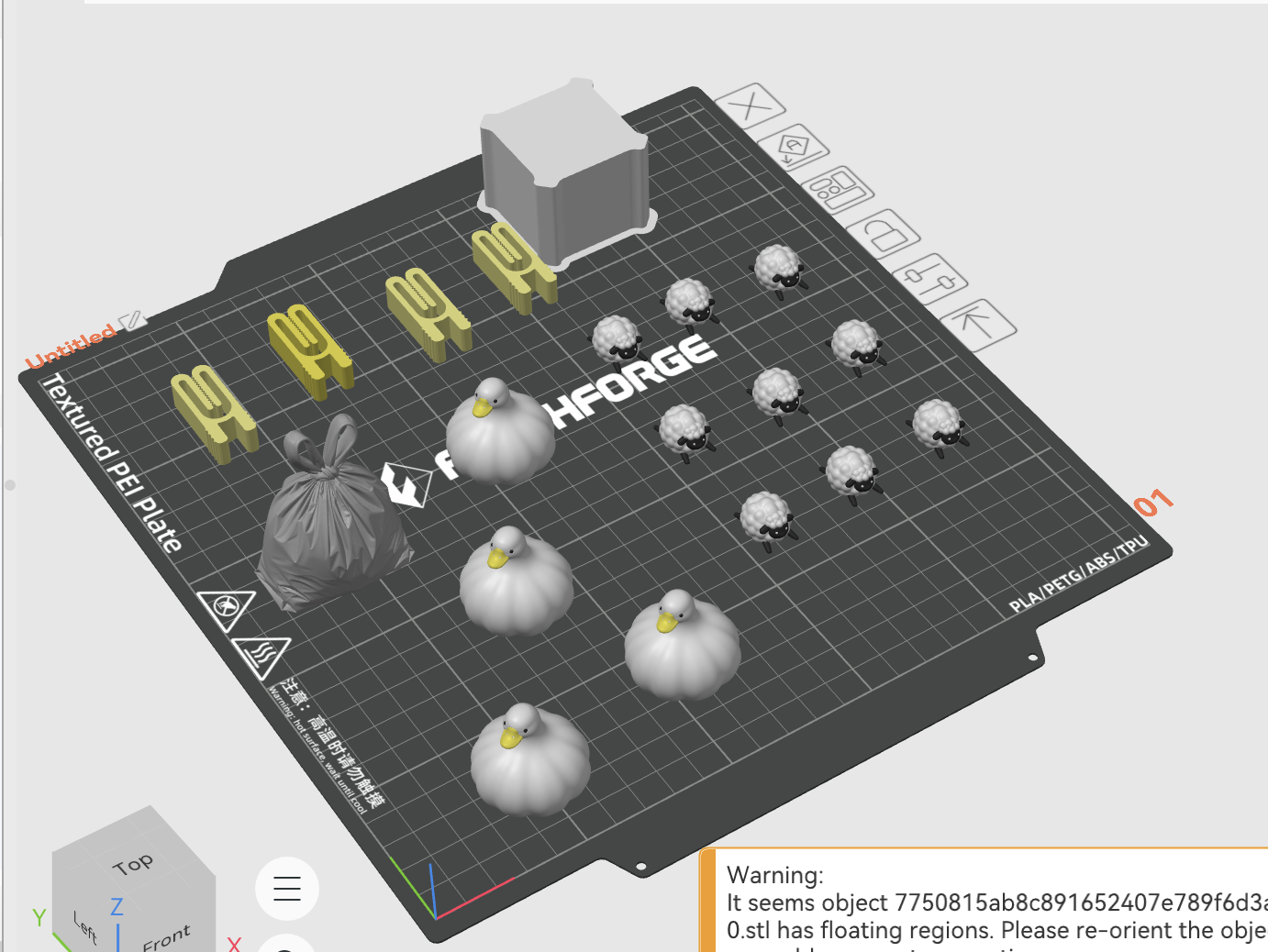
Flash Studio Desktop provides a powerful painting tool. Using this tool, you can paint with different colors on selected objects.
If you want to paint directly on the model, click the paint button in the top toolbar to enter the painting interface.
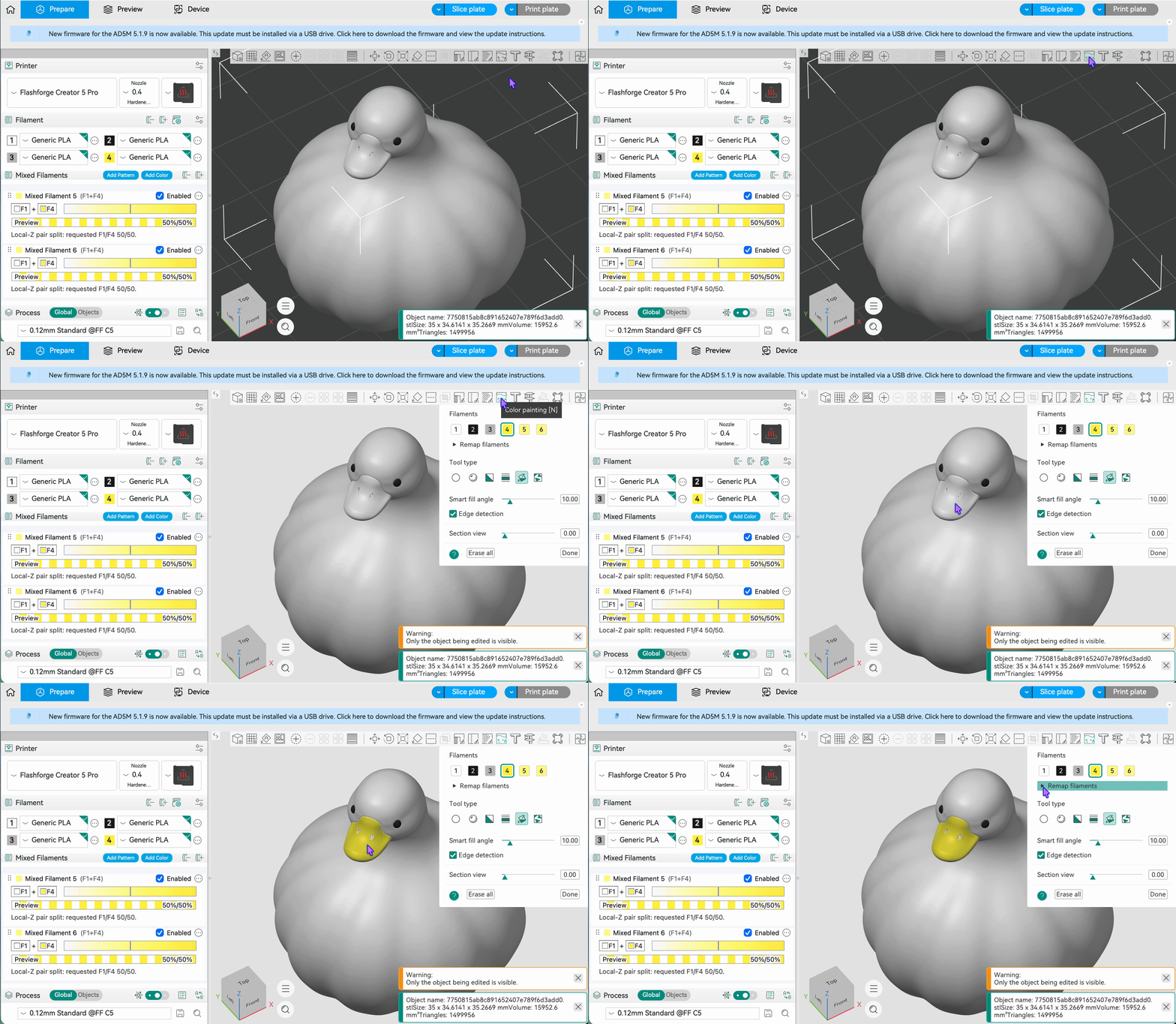
- Select color
- Select tool type and adjust tool parameters
- Painting result
¶ Color Mixing Printing Guide
If you want to use a limited amount of filament to print models in more colors, you can use the color mixing feature in your Flash Studio Desktop.