¶ Basic Introduction
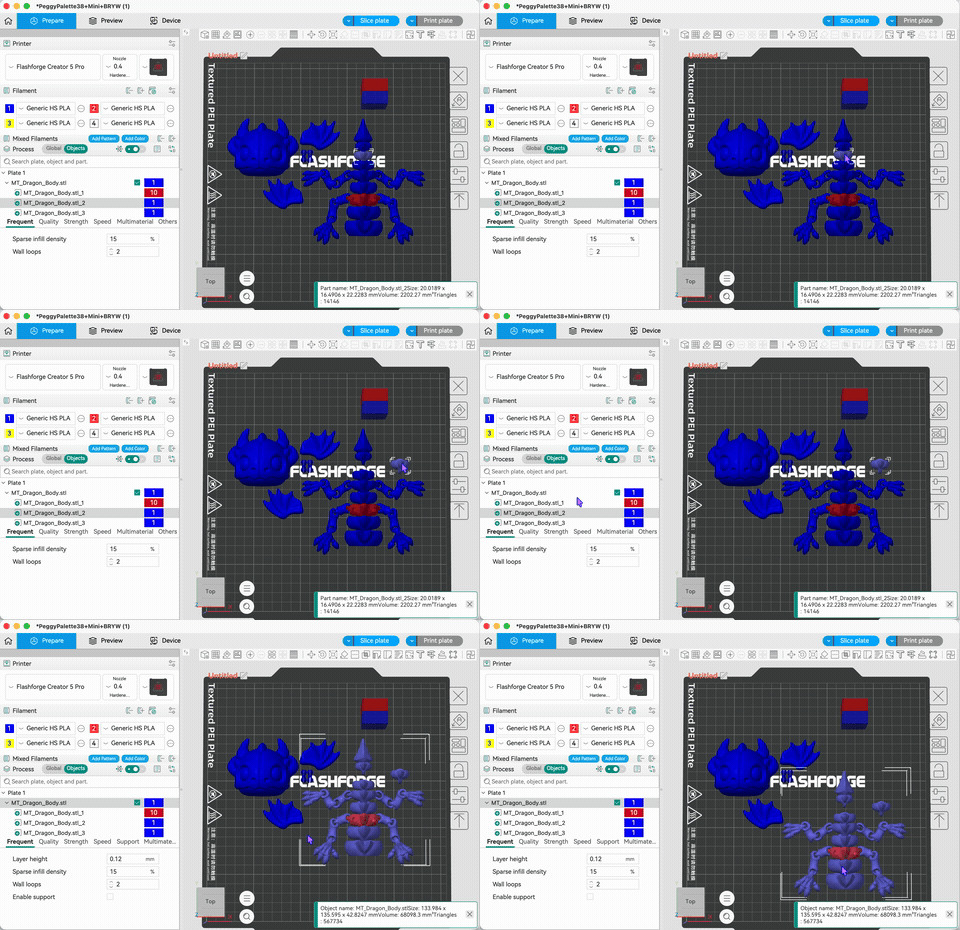
When importing a model, Flash Studio merges all connected parts of an STL file into a single object. However, in actual printing, we often need to independently operate on different parts of the model — such as setting filament colors separately, adjusting print parameters, or splitting an oversized model for individual printing.
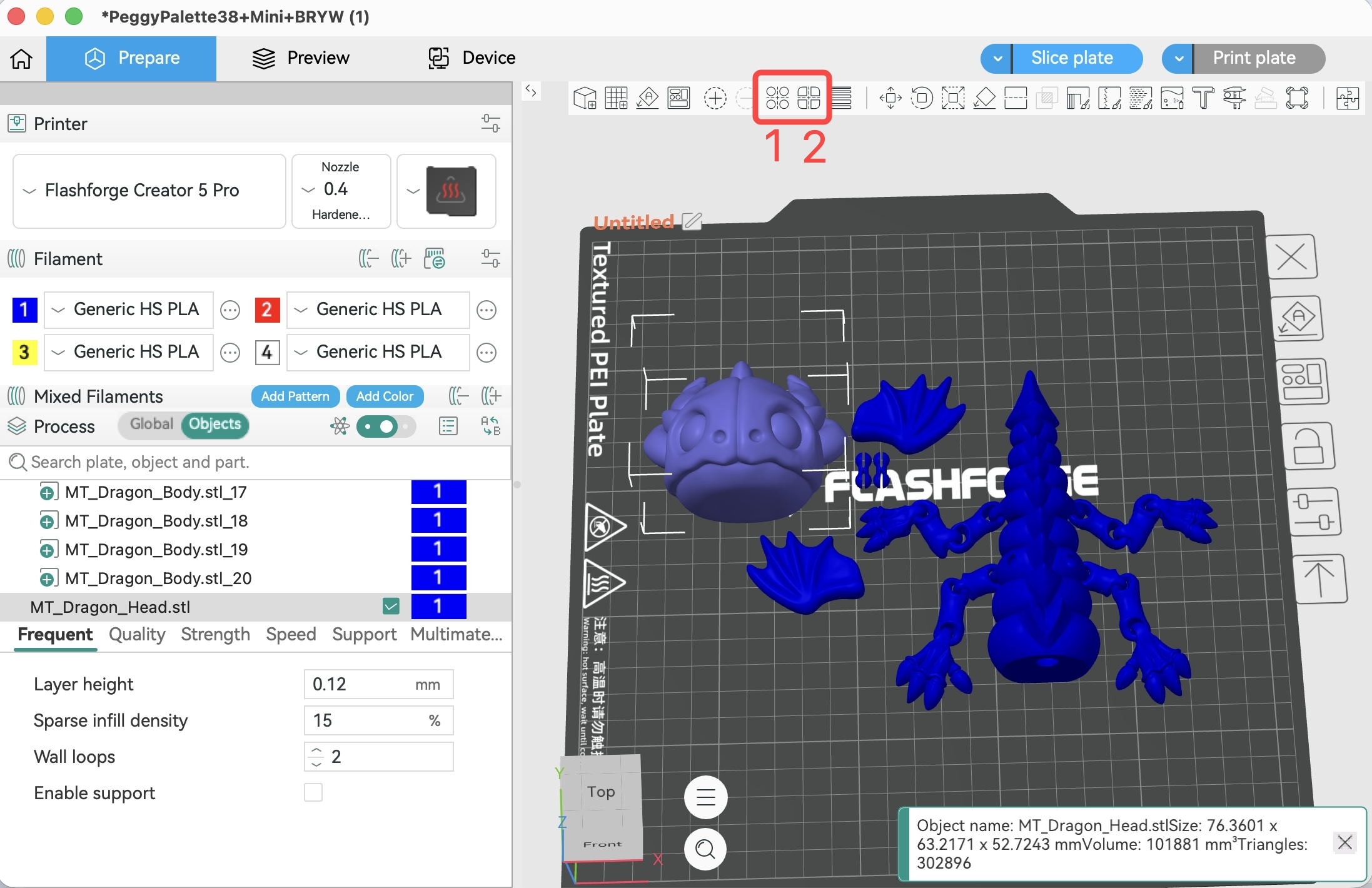
Flash Studio provides two splitting methods in the top toolbar, each suited for different use cases:
"Split into Objects"
"Split into Parts"
¶ Split into Objects
After using "Split into Objects", all disconnected parts of the model are separated into independent objects. Each object appears individually in the left object list, and can be independently moved, rotated, scaled, and assigned separate print parameters.
- Typical Use Case: The model exceeds the printer's build volume and needs to be split for separate prints; or multi-color printing is needed but the device does not support automatic filament switching — after splitting, print each part individually and manually assemble afterward.
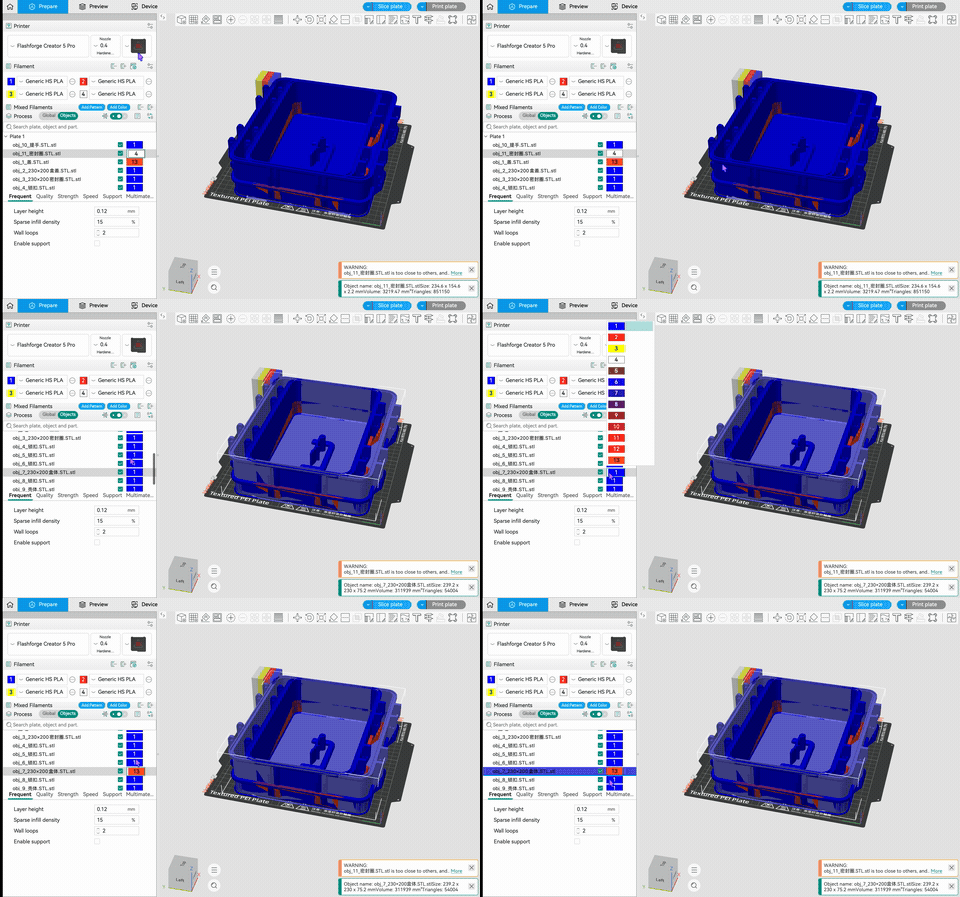
Note that after splitting into objects, each part is processed separately during printing. Manual assembly is required after printing to restore the complete model.
¶ Split into Parts
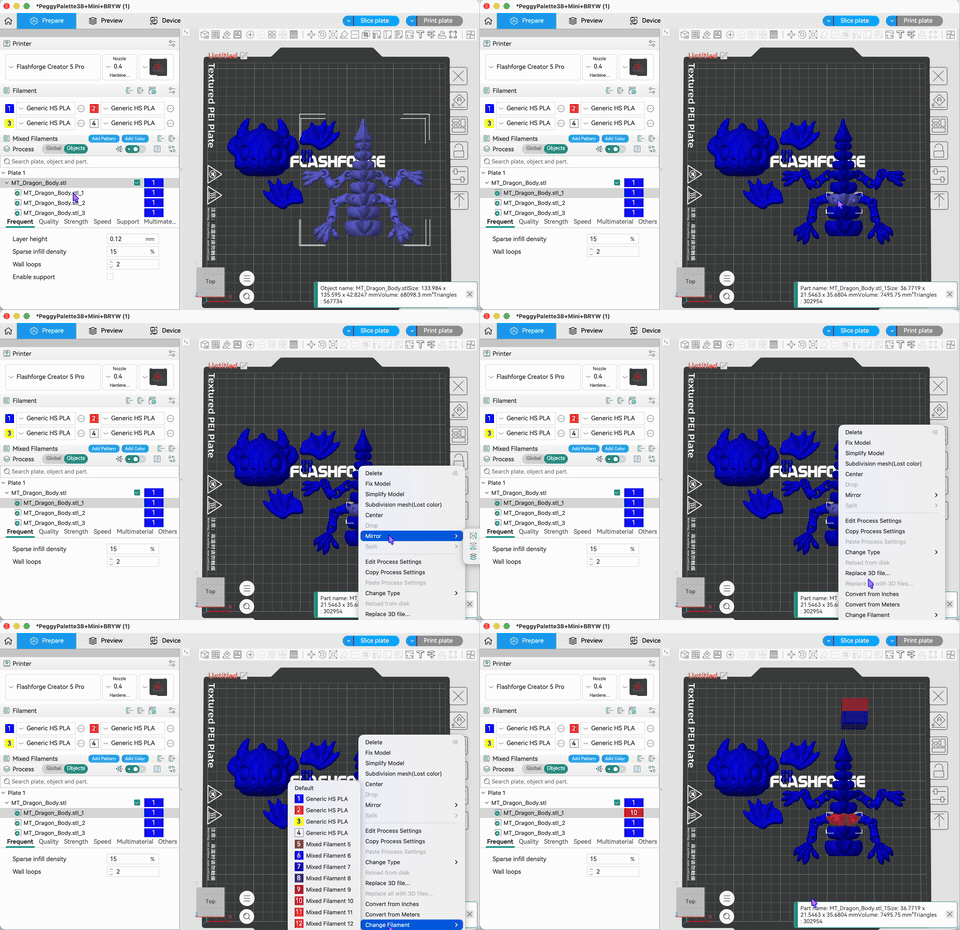
"Split into Parts" also separates the model by shells, but all parts remain under the same object, displayed as sub-items in the object list, and maintain their original relative positions on the plate.
- Typical Use Case: This method is more suitable for multi-color printing scenarios — after assigning different filament colors to different parts, the full model can be printed in multiple colors in a single print job, with no post-assembly required.
¶ Differences Between Objects and Parts
Understanding the differences between the two helps you choose the correct splitting method:
- Selection Behavior: When clicking on a model on the plate, the entire object is selected by default; individual parts cannot be directly selected. To operate on a specific part, you need to click the corresponding sub-item in the left object list, or hold Alt and click on the model to select a part.
The image below shows the difference between "Parts" and "Objects" for a multi-part model, as well as the different selection methods.