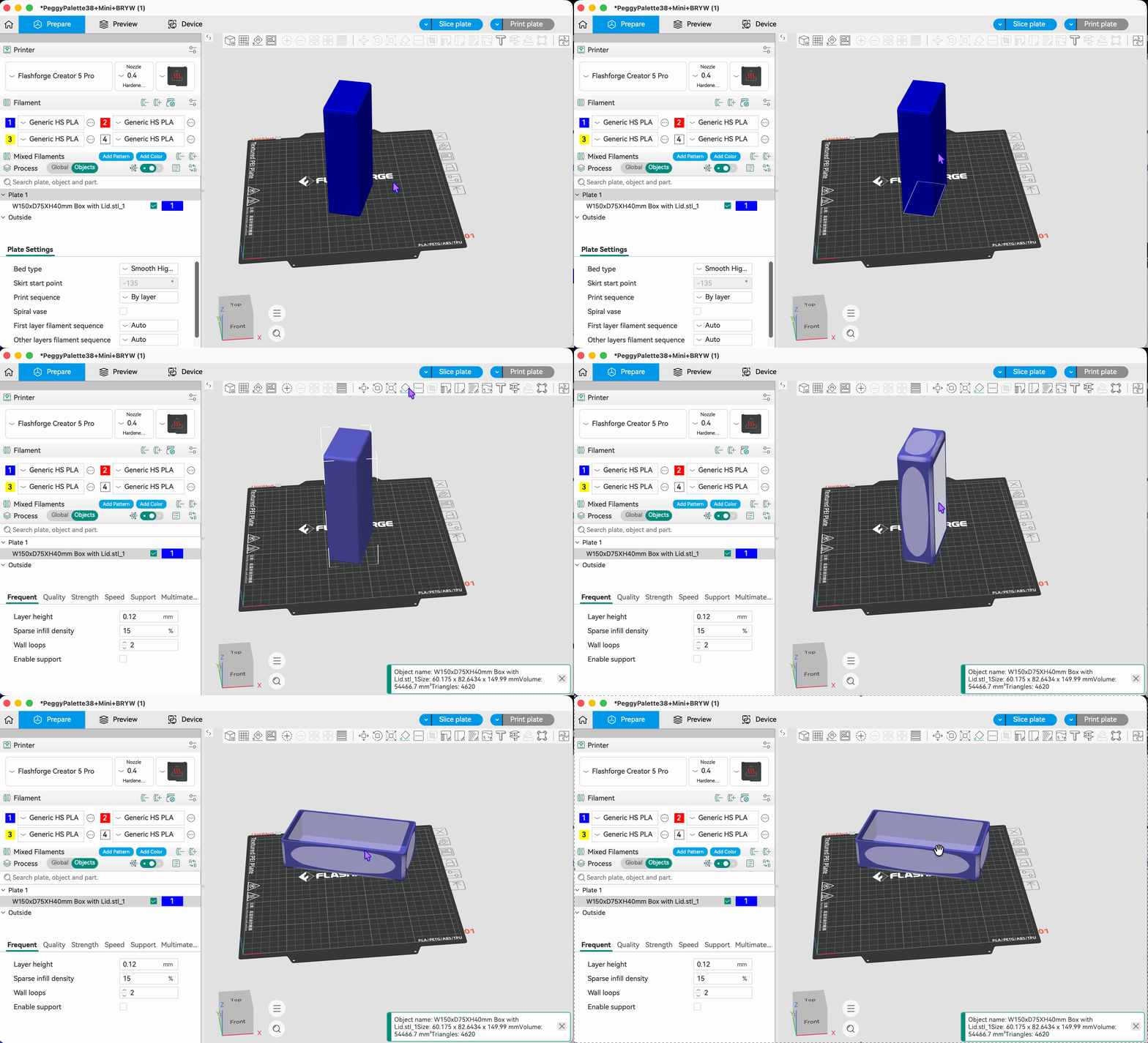
¶ Feature Overview
When you import a model in Flash Studio Desktop, the orientation may not be consistent after import.
Using the "Select Surface" feature in the top toolbar, you can choose a specific flat surface of the model as its bottom face.
First, select the model you want to edit. After clicking the "Select Surface" icon, multiple white planes will appear on the model for you to choose from. The selected plane will be placed on the plate as the bottom face.
- Use Case: For tall, slender models, place the larger flat surface as the bottom to prevent the model from collapsing during printing.
The storage box model shown below was imported with the narrower plane as the bottom face. You can manually select a larger plane as the bottom face to prevent the model from collapsing during printing and increase the print success rate.