¶ Feature Description
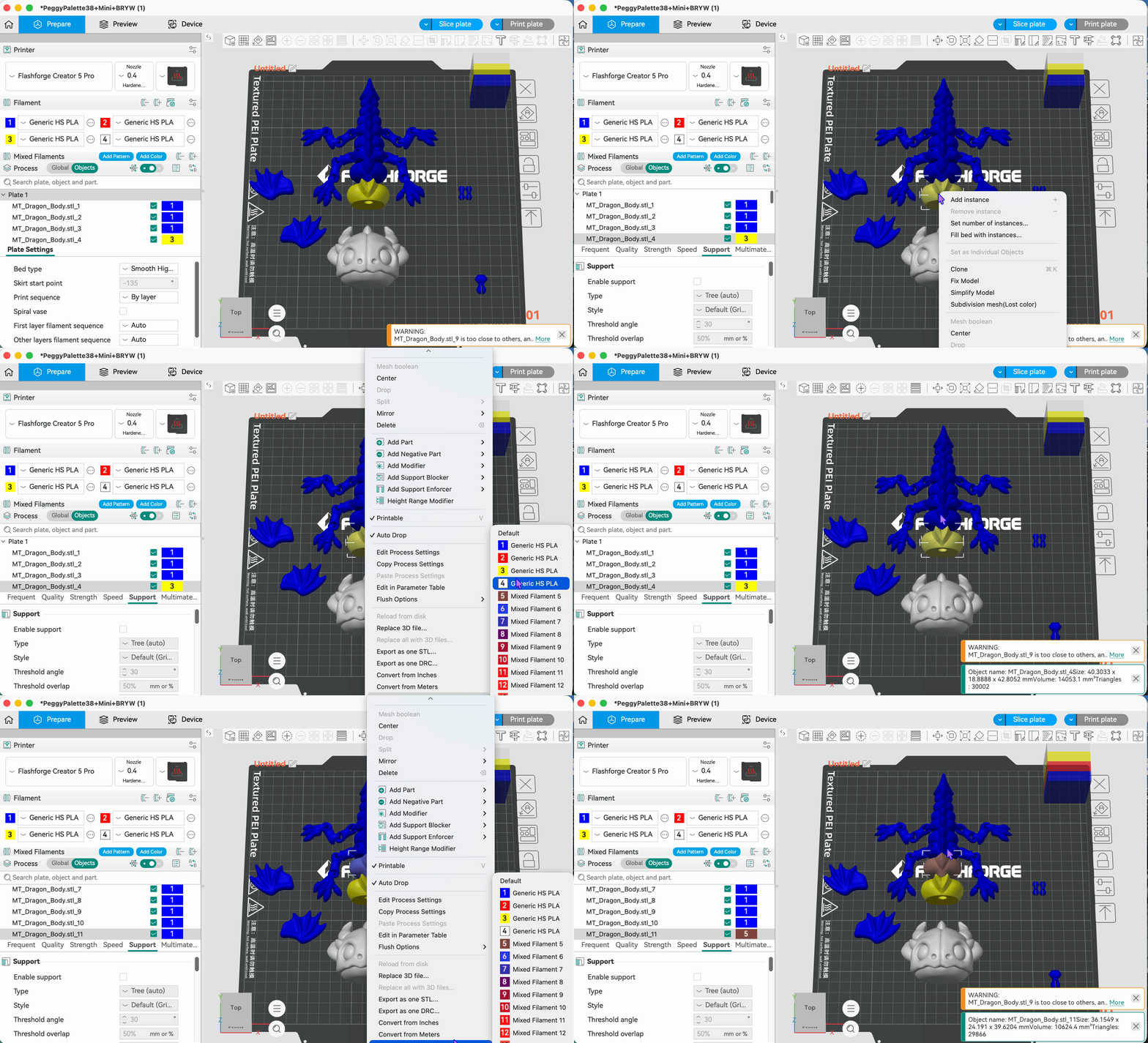
When printing multi-part models in multi-color printing, different filaments can be assigned to different parts. Flash Studio Desktop supports quickly changing the filament of a specified part through the right-click menu in the 3D preview interface.
¶ Operation Steps
Select the model or part that needs to have its filament changed in the object list.
Switch to the preview interface, right-click the model in the 3D view, and select "Change Filament" from the pop-up menu.
In the filament selection panel that appears, select the target filament number and confirm to complete the change.
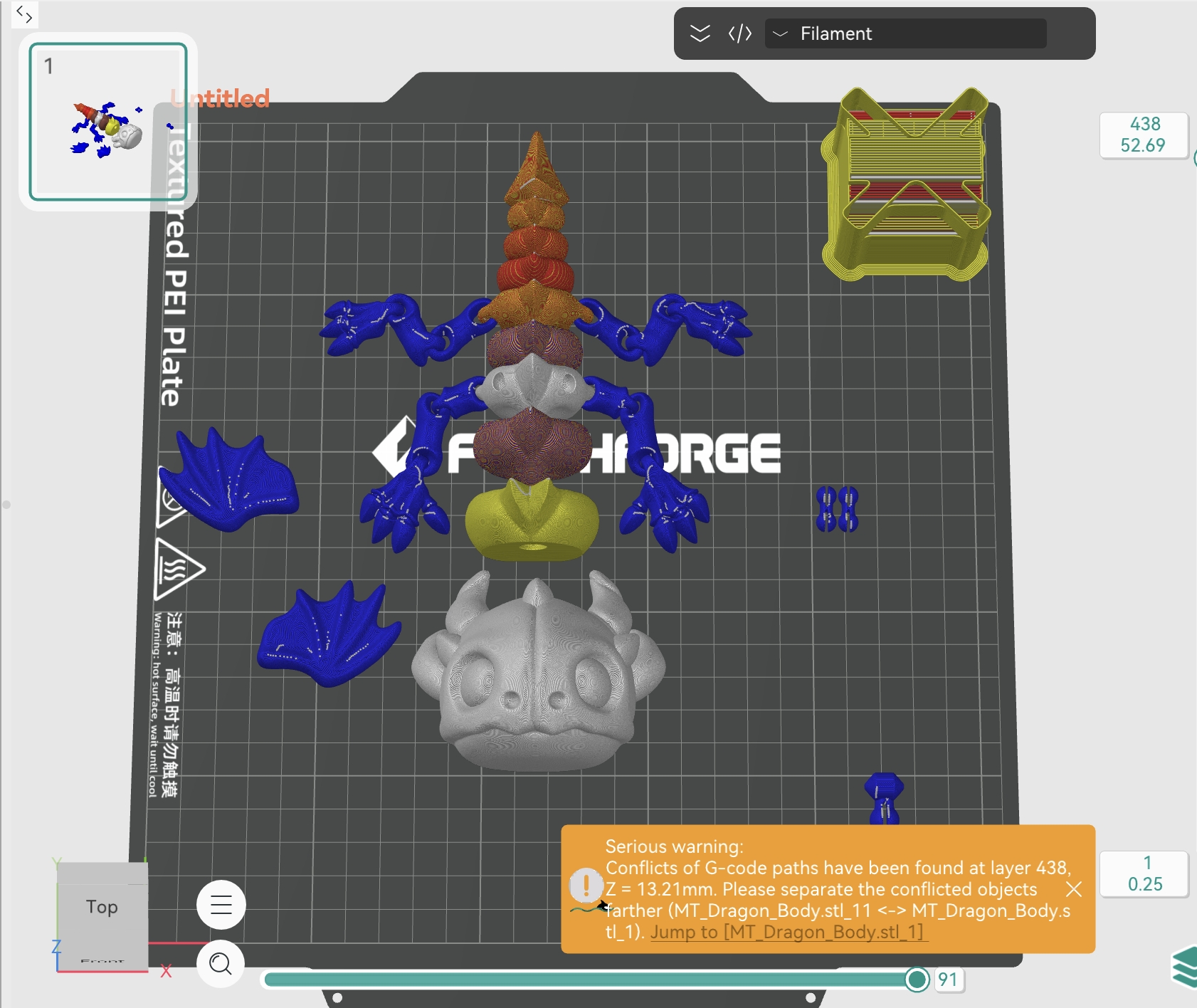
After changing the filament, different parts of the skeleton dragon model display different color effects
¶ Notes
This feature is only available in the preview interface and cannot be used in the preparation interface.
After changing the filament, the color of the corresponding part in the slicing preview will be updated to the new filament color, making it easy to visually confirm the assignment result.
Ensure that the printer supports multi-color printing and that multiple filament channels are correctly configured.