¶ Overview
In FDM 3D printing, layer height is a key parameter that affects print quality and speed. A smaller layer height can produce finer surface details but significantly increases print time; a larger layer height prints faster but results in a rougher surface.
The "Adaptive Layer Height" feature allows you to set different layer heights for different regions on the same model — using a smaller layer height for curved surfaces and details that require fine rendering, and a larger layer height for flat or simple areas. This effectively improves the overall surface quality of the model without significantly increasing the total print time.
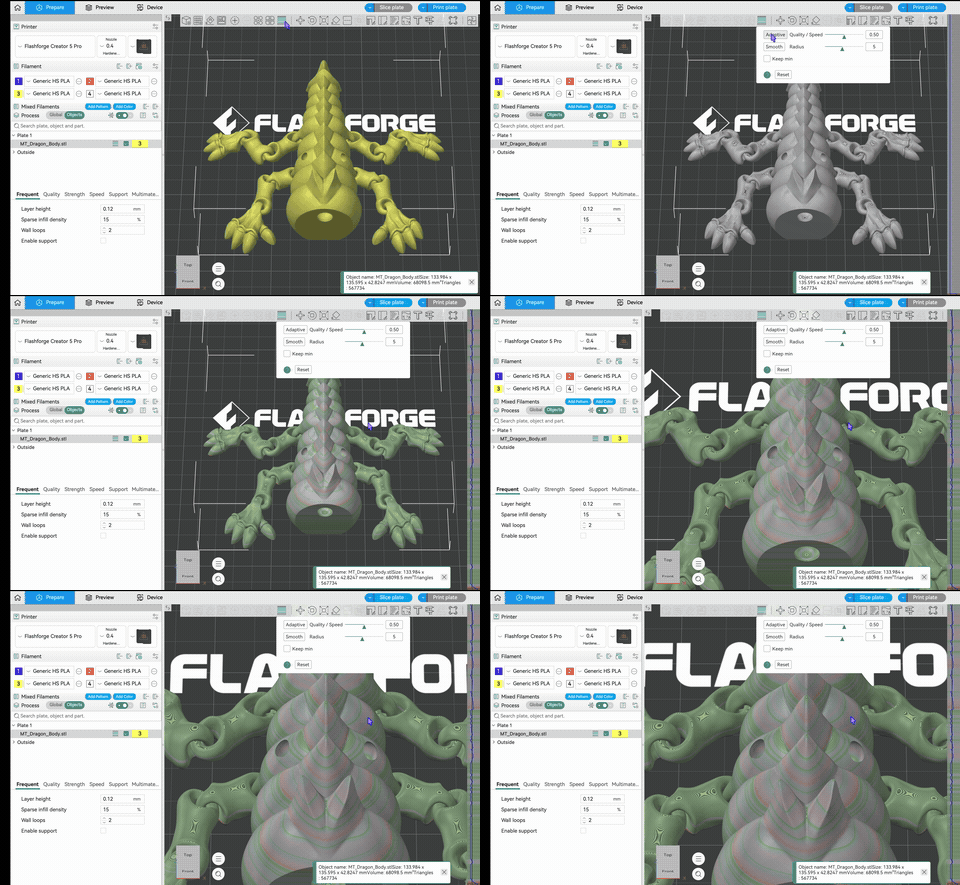
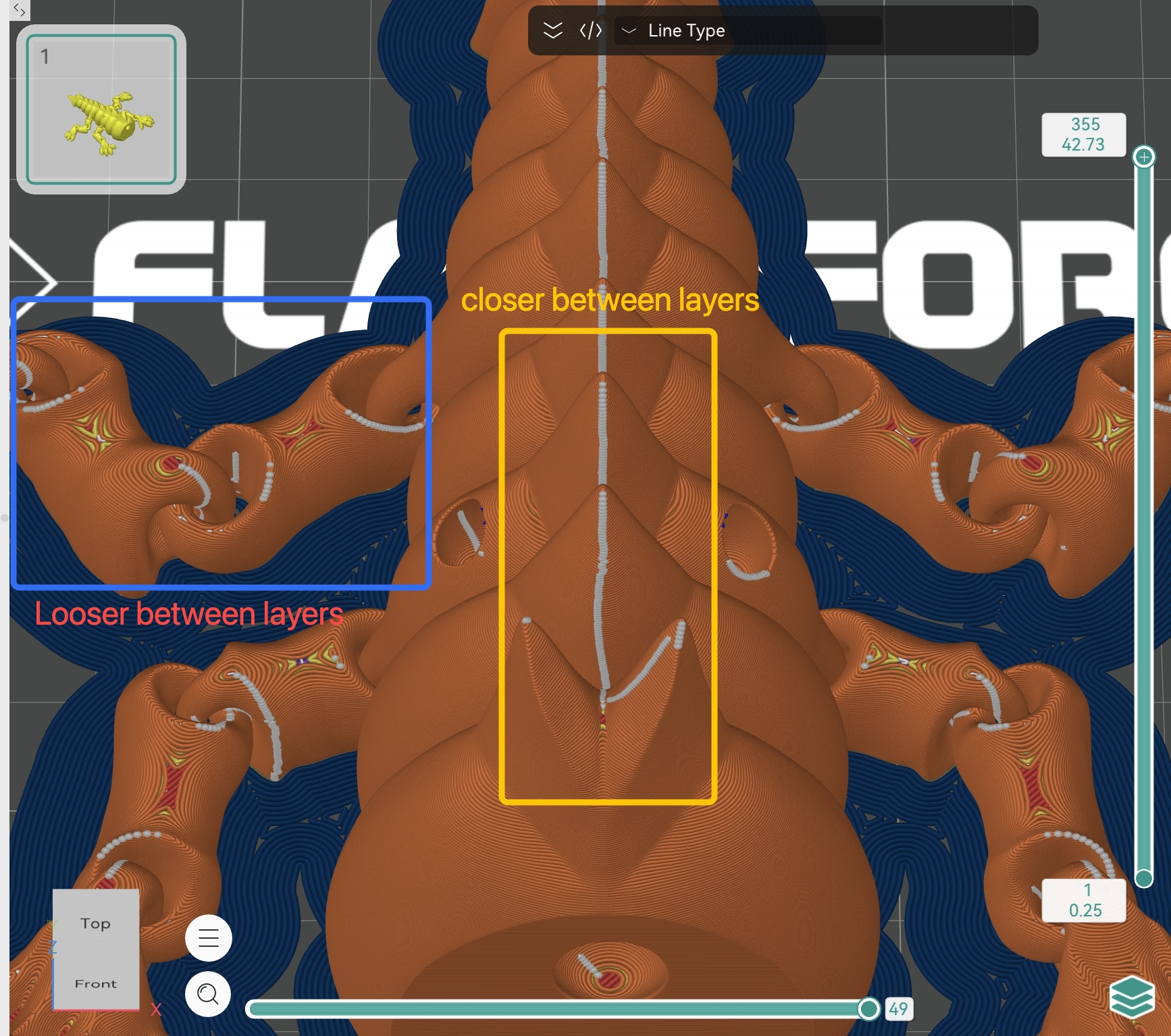
The dragon model shown below has many curved surfaces on the body and trunk, while the claws are relatively flat. By enabling the "Adaptive Layer Height" feature, the trunk area can use a smaller layer height while the claws maintain a larger layer height, improving print precision.
¶ How to Use
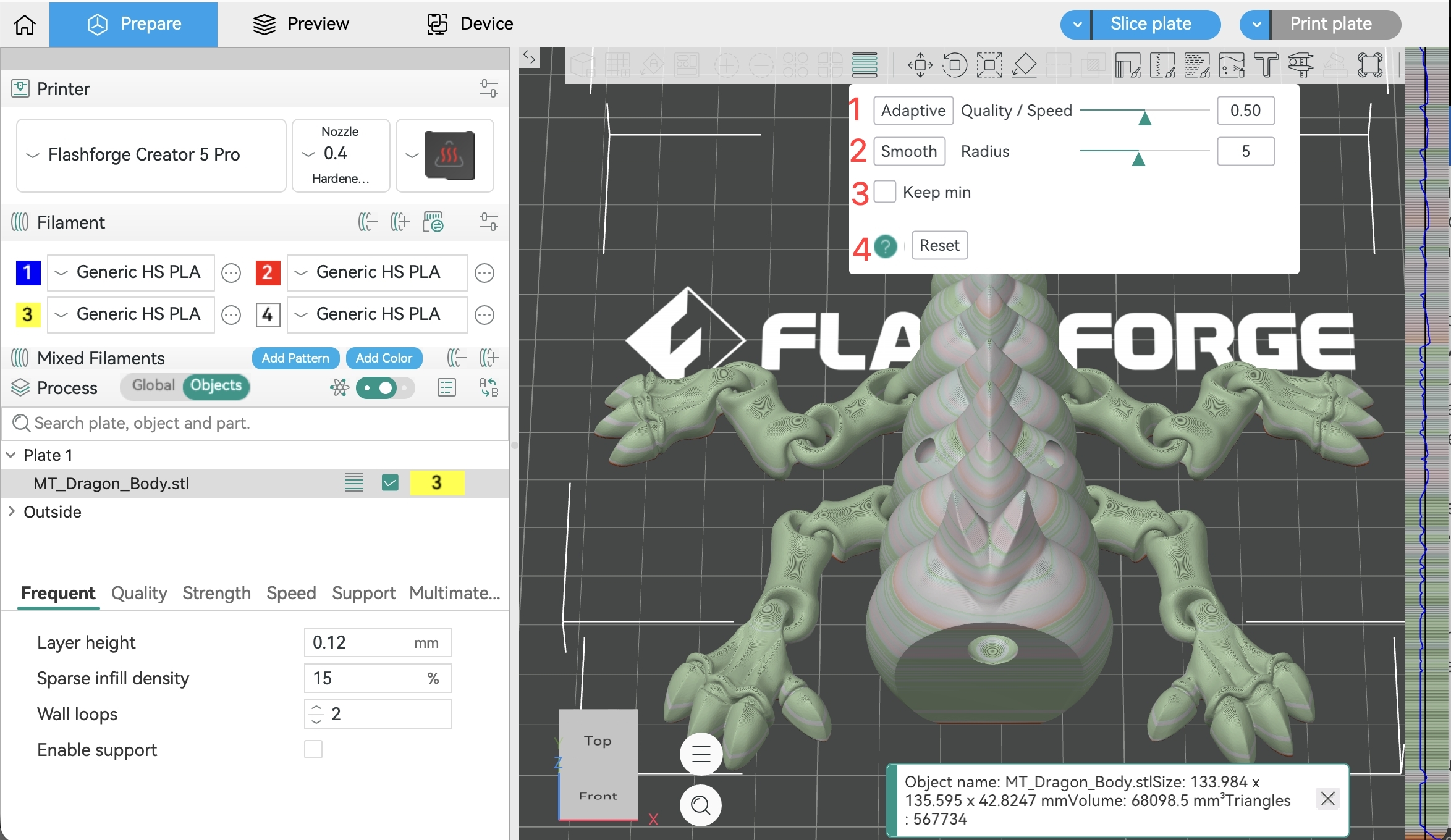
Click the Adaptive Layer Height button in the top toolbar to open the settings panel, where you can adjust the parameters.
¶ Parameter Description
-
1. Adaptive: After clicking, the system will automatically analyze and assign layer heights based on the model's geometric features. Curved and sloped areas will automatically use a smaller layer height to enhance detail, while flat areas will use a larger layer height to save time.
-
Detail/Speed: Drag the slider to adjust between "more detail-oriented" and "more speed-oriented." The further right the slider (detail end), the smaller the overall layer height, resulting in higher surface quality but longer print time; the further left the slider (speed end), the larger the overall layer height, resulting in faster printing but reduced detail. The value on the right displays the current layer height multiplier corresponding to the slider position.
-
2. Smoothing Mode: When enabled, transitions between adjacent layer heights will be smoother, avoiding visible step marks on the model surface caused by sudden layer height changes. The radius parameter controls the range of the smooth transition — a larger value results in a softer transition.
-
3. Preserve Minimum: When checked, the system ensures that the layer height in all areas does not fall below the base layer height value set in the process parameters, preventing excessively small layer heights during automatic assignment that could lead to overly long print times.
-
4. Reset: Click to clear all adaptive layer height settings and restore to a uniform base layer height.
¶ Application Scenarios
Adaptive Layer Height is particularly well-suited for the following types of models: organic forms with complex curved surfaces (such as character and animal models); models with extensive surface details but large overall volume; models that require high precision in specific areas while other areas can be printed quickly.